
This guide explains how Staffers add Must-dos to visits, recurring rules and Services in Lookout, the access role permissions you need, and what to do if something isn't working.
Overview
What is a Must-do?
A Must-do is a task, request, or question that must be completed as part of a service. Each one has a title saying what needs to be done and a description with the details you need, such as where something is kept or what to check.
Must-dos are different from Should-knows. A Should-know is information for you to read. A Must-do is an action you need to complete and respond to.
-> Read our article on Rostering Should-Knows to master the difference between the two.
Please note: A Must-do needs a response from the Helper. A Should-know only passes a message to the Helper and has no response. Automatic Must-dos are set up on a Service and added to every Visit with that Service.
You can add Must-dos in four places:
- A single Visit: A one-off task for a particular Member.
- Several Visits at once: The same task on many Visits.
- A recurring rule: A task that repeats on every future Visit from that rule.
- A Service: A task that applies to every Visit with that Service.
Types of Must-dos
A Must-do is a task a Helper has to respond to before they can check out of a visit.
| Type | Where it is set up | Example | Use case |
|---|---|---|---|
| Visit Must-do (shows as "Ad hoc") | On a single visit, using Add Must-do | "Collect the key from reception" | A one-off task for this visit only. |
| Recurring Must-do | On a recurring rule | "Check the fridge for out-of-date food" | A task needed at every visit in a regular schedule. It is copied onto every scheduled visit in that rule. |
| Bulk Must-do | Roster bulk actions, after selecting several visits | "Remind the Member the office is closed on Monday" | The same task added to many visits at once. |
| Service Must-do (automatic) | On a Service, in Settings > Care > Services | "Did you provide the medication support set out in the care plan?" | A task added automatically to every visit that includes that Service. |
| Medication support Must-do | A Service Must-do with Is this related to medication compliance? set to Yes | "Medication support" | Tracks whether medication support was given at each visit. |
Please note: A Service is a type of support your organisation delivers, such as "Personal care" or "Domestic assistance". Services are set up in Settings > Care > Services.
With Connected Care: Confirmation of delivery enabled:
Supplier purchase order Must-do: added to a purchase order line, or to several lines at once with Add Must-do. For example, "Upload a photo of the installed grab rail". The Supplier Helper answers it when they confirm delivery.
How Helpers see and respond to Must-dos
What Helpers see
- The upcoming visit reminder says how many Must-dos the visit has, for example, "2 things you must do".
- The visit details show each Must-do with its title and description.
- During the visit, a progress bar shows how many Must-dos are left.
- Helpers cannot check out until every Must-do has a response. If they try, Lookout takes them to the Must-dos screen first.
- If a check-in is undone, written responses on that visit are cleared.
Response types
| Response | What the Helper does | Applies to | Add-on needed |
|---|---|---|---|
| Written response | Types a response of up to 1,000 characters | Visit, recurring and bulk Must-dos | None |
| Done / Not done | Selects Done or Not done. A comment is optional, but required for Not done | Service and medication support Must-dos | None |
| Attachment | Uploads a photo or document | Must-dos with Require attachment ticked | Connected Care: Confirmation of delivery |
| Form | Fills in a linked form | Visit, recurring and Service Must-dos | Clinical care: Care plans + forms |
| Form on a Supplier purchase order Must-do | Fills in a linked form | Supplier purchase order Must-dos | Connected Care: Confirmation of delivery and Clinical care: Care plans + forms |
Where Must-do responses go
| Location | What appears |
|---|---|
| Must-dos ticket (Tickets) | When the visit is completed, Lookout raises a ticket for the Staffer selected in Assign ticket to. It holds that visit's written responses. One ticket is raised per assigned Staffer. Service Must-dos do not raise tickets. |
| Member's Notebook | The completed visit shows "X of Y completed", each response tagged Completed or Incomplete, and a View Must-do ticket link. |
| Notebook > Checkout notes > Must-do responses | A tab listing only the visits that have Must-do responses. |
| Member's Lookout timeline | Medication support responses show in the Medication compliance row as Completed, Missed or Probably missed for each day. |
| Observations | A Not done on a Service Must-do always creates an observation: Medication for medication support Must-dos, Risk for the others. Comments on Done responses are also checked and may create an observation. |
| Member's Files (Connected Care: Confirmation of delivery) | Uploaded attachments, which you can filter by the Must-do source. |
| Member's forms (Clinical care: Care plans + forms) | Completed forms, opened from the Notebook with View response. |
| Data export | See the reporting section below. |
Please note: Must-dos cannot be added to a Community, and responses do not appear in Communities. Only Should-knows can be added by Community.
Common examples of Must-dos
- Medication support: "Did you provide the medication support set out in the care plan?" Answer Yes or No, and give a reason if No.
- Collect the key: "The key is in the lock box beside the front door." Confirm once you have collected it and returned it.
- Secure the home before leaving: "Check the back door and windows are locked before you leave." Confirm the home is secure.
- Check pendant alarm is worn and changed " Note if it is missing, not charging or not working."
Report on status. - Photograph completed work: "Take a photo of the area once cleaning, gardening or repairs are finished with consent." Upload the photo and note any issues.
Reporting and tracking completed Must-dos
Day-to-day tracking
- Tickets: Filter by the Must-dos category and assignee to see responses waiting for review. Complete each ticket once you have followed up.
- Notebook: Check the "X of Y completed" count and the Incomplete tags on each visit.
- Lookout timeline: Look for Missed or Probably missed in the Medication compliance row.
- Observations: Review any observations raised by Not done responses.
Before you start
To complete this process, make sure:
- You are logged into Lookout on the web as a Staffer.
- Your access role includes the permissions listed in "Access role permissions" below.
- The visit is Scheduled and linked to a Member. You can't add or edit Must-dos once a visit has started or been completed.
- You have Connected Care: Confirmation of delivery and Clinical plans: care plans + forms enabled to use its features
Access role permissions
Access roles control what each Staffer can do with Must-dos, from adding them to Visits and Supplier purchase orders to seeing the responses from Helpers and Suppliers. Some permissions are core and available to every organisation. Others only appear once a release is turned on in Release Hub. Setting these up correctly means every Must-do response reaches a Staffer who can see it and act on it.
Core permissions
Every organisation has these enabled as a default.
| Task | Permission | Setting |
|---|---|---|
| Add, edit or delete Must-dos on Visits, including bulk and recurring | Access to rostering | Read & write |
| Add or edit Must-dos on Supplier purchase orders | Access to purchase orders | Read & write |
| Set up automatic Must-dos on Services | Configure services globally | Ticked |
| View responses in the Member's Notebook and Checkout notes | Member notebooks | Read |
| View and action Must-dos tickets | Must-dos ticket category | Added to the role |
Add-on permissions
These only appear once the release is turned on in Release Hub.
| Release | Permission | What it allows |
|---|---|---|
| Clinical care: Care plans + forms | View form responses or Create and edit form responses | View or complete forms attached to Must-dos |
| Clinical care: Care plans + forms | Configure form templates | Create the forms used in Must-dos |
| Connected Care: Confirmation of delivery | No permission of its own | Photo and document uploads, bulk must-dos on purchase orders, and Supplier responses in the supplier portal |
Please note: Forms on Supplier purchase order Must-dos need both releases turned on.
How this affects Staffers
- A Staffer without the core permission cannot add or manage Must-dos.
- If a release is off, its options stay hidden, even if the Staffer has the right permissions.
- Once Must-dos are added to any access role, only Staffers in those roles can see Must-dos tickets.
Why it matters
- If a Staffer chosen to receive responses cannot see the Must-dos ticket, responses can be missed.
- Missed responses can mean critical tasks, such as medication support, go unchecked.
- Correct setup means each task is confirmed by the Helper or Supplier, reaches the right Staffer and is kept on the Member's record.
Important: Before you finish setup, check that every Staffer chosen to receive responses is in a role that has the Must-Dos ticket category.
Without Role-based access control (RBAC)
If your organisation hasn't turned on Role-based access control (RBAC) in Release Hub, Must-dos are controlled by the tick boxes under Additional access on each access role.
| Task | Additional access required |
|---|---|
| Add, edit or delete Must-dos on Visits | Rostering |
| Add or edit Must-dos on Supplier purchase orders | Rostering, Finance admin or Finance |
| Set up automatic Must-dos on Services | Workflow |
| View responses in Notebook and Checkout notes | None. All Staffers have access. |
| View and action Must-dos tickets | None. All Staffers have access. |
| View or complete forms on Must-dos | None. All Staffers have access. |
| Create the forms used in Must-dos | Workflow or Care management |
| Turn on releases in Release Hub | Subscription & billing |
Please note: Without RBAC, Must-Dos tickets can't be limited to certain roles, and each tick box turns on a group of abilities at once. For example, the Finance tick box also lets Staffers edit Must-dos on Supplier purchase orders.
Add a Must-do to a single visit
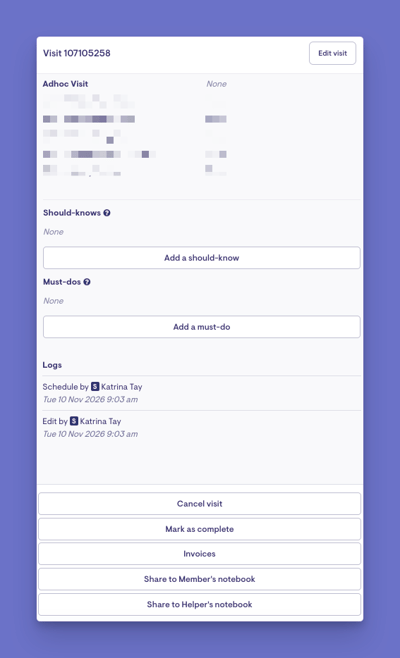
Step 1: Open the visit
- Navigate to the Member's or Helper's roster.
- Select the Visit to open its details.
- Scroll to the Must-dos section.
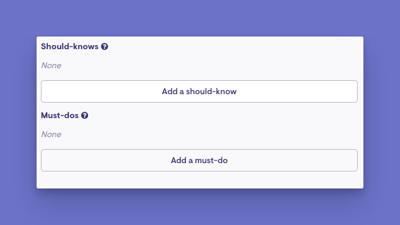
Step 2: Complete the Must-do details
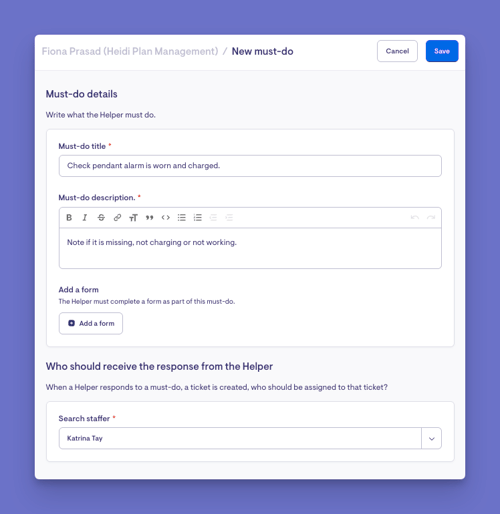
- Click Add a Must-do.
- Enter a Must-do title, for example, "Collect the key from reception".
- Enter a Must-do description explaining what the Helper must do and report on.
- Under Who should receive the response from the Helper, select a Staffer in Search staffer. This Staffer will be assigned the ticket for the Helper's response.
Step 3: Save
- Click Save.
- If the visit is recurring, choose one of these options:
- Only add to this visit.
- Add to future visits: creates a recurring Must-do on the recurring rule.
You should now see "Successfully added Must-do to visit." and the Must-do listed in the Must-dos section. The visit also shows a Must-do icon with the tooltip "Visit has Must-dos".
-
To change or remove a Must-do, click Edit or Delete on it.
Important: Must-dos added to a single visit only are ad hoc. If the recurring rule is changed later, its scheduled visits are regenerated and ad hoc must-dos are lost. Use Add to future visits for tasks that should repeat.
Add or remove Must-do to several visits at once
- Open a list of visits, such as the Member's Visits list or Daily snapshots.
- Tick the boxes next to the visits.
- Select Actions > Add Must-do.
- Enter a Title and Description.
- Under Who should be alerted?, select a Staffer in Pick a staffer.
- Click Add Must-do.
You'll see "Must-dos scheduled successfully" while Lookout adds the Must-do to each visit.
Remove Must-dos in bulk
- Tick the boxes next to the visits.
- Select Actions > Remove all Must-dos.
- Click Remove all Must-dos to confirm.
Warning: Remove all Must-dos removes every visit Must-do on the selected visits, not only the one you added. Must-dos from Services are not removed.
Add or remove a recurring Must-do to a recurring rule
- Go to Rostering > Recurring rules and open the rule.
- In the Must-dos section, click Add a recurring Must-do.
- Enter the title, description and the Staffer who should receive the response.
- Click Save.
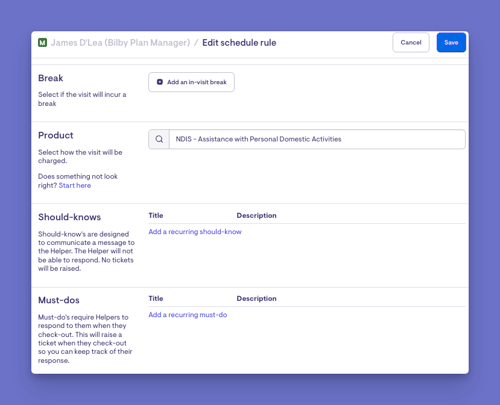
You'll see "Successfully created recurring Must-do". The Must-do is added to every future visit from that rule.
Remove a recurring Must-do from a visit rule:
-
Open the Member's dashboard and go to their list of Visits.
-
Find a Visit that belongs to the rule and click the recurring rule description shown next to it.
-
Scroll down to the Must-dos section.
-
Click Delete next to the Must-do.
-
Click to confirm.
This removes the Must-do from all scheduled visits in that rule. Visits that are in progress or completed keep the Must-do and any responses already given.
Add or remove a Must-do to a Service
Use this for tasks that apply to every visit with a particular Service, such as medication support.
- Navigate to ⚙ Settings > Care > Services and open the Service.
- Under Must-dos (optional), click Add a Must-do.
- Enter the Name of Must-do and a Description.
- Under Is this related to medication compliance?, select Yes or No.
- Click Save.
Lookout adds the Must-do to every scheduled visit with this Service, and to future visits with it.
Top tip: Keep Service Must-dos general to the Service. For tasks specific to one Member, add the Must-do to the visit or recurring rule instead.
Running a Must-do report
- Select Data export in the main menu.
- Select Create your own.
- Under Members, choose Visit Must-do responses. The spelling matches what appears on screen.
- Select a date range.
- Use Manage columns or Add column to choose the details you need, such as the Must-do title, the response, who responded, ticket details, visit details, the Helper and the Member.
- Select Export CSV.
Important: The Visit Must-do reponses export only includes written Must-dos on completed visits, meaning those that have a Must-dos ticket. The date range matches the date the ticket was raised. Service and medication support Must-dos are not in this export.
What happens next?
- Before the visit, the Helper sees the number of Must-dos on it in their app, for example, "1 thing you must do".
- When the Helper checks out, Lookout asks them to respond to every Must-do. They can't finish checking out until each one has a response.
- For Service Must-dos, the Helper chooses Done or Not done. They must add a comment if they choose Not done.
- When the visit is completed, Lookout creates a Must-dos ticket for each Staffer chosen to receive responses. If a visit has several Must-dos for the same Staffer, they are grouped into one ticket.
- A Not done response on a Service Must-do triggers an observation. It is a medication observation if the Must-do is related to medication compliance, and a risk observation if it isn't.
- Responses to medication compliance Must-dos appear on the Member's timeline.
What Staffers, Helpers and Members will see
For Staffers
- The Must-dos section on each visit, showing automatic Must-dos and visit Must-dos.
- The Must Dos ticket assigned to them once the visit is completed, with the Helper's response to each Must-do.
- Responses on the completed visit in the Member's Notebook, shown as "[number] of [number] completed".
- All responses in the Member's Checkout notes under the Must-do responses tab.
For Helpers
- The number of Must-dos on each upcoming visit.
- During the visit, a progress bar showing how many are left, such as "1 left to do", or "All done!" when finished.
- Each Must-do's title and description.
For Members
Members don't see Must-dos or responses in the app.
Add-on features: Connected Care
With Connected Care: Confirmation of delivery enabled:
- A Supports attachment option appears when you add a Must-do to a visit or several visits.
Tick it to let the Helper respond with a document or photograph instead of text. - On Service Must-dos, the option shows as Require attachment.
The worker must attach a document or a photograph in response. - You can add Must-dos to purchase order lines so supplier workers provide proof of delivery.
- Automatic must-dos from a Service also apply to purchase order lines with that Service.
They show under "Automatic Must-dos apply for the selected service/s" and can't be edited on the line. - Supplier workers respond to Must-dos in the supplier portal or through their checkout link before they check out.
- Responses appear in the Member's Notebook and Checkout notes, the same as visit responses.
Add Must-dos to a single purchase order line:
- Open the purchase order and find the line.
- In the line's actions, select Manage checkout.
- In the Must-dos section, click Add Must-do.
- Enter the Must-do title, Must-do description and the Staffer in Assign ticket to.
- Click Save changes, or Send to supplier if the checkout link hasn't been sent yet.
Add or remove Must-dos on several lines at once:
- Navigate to Finance > Purchase orders.
- Tick the boxes next to the lines.
- Select Actions > Add Must-do, or Actions > Remove all Must-dos.
Please note: Must-dos can't be added to or removed from lines that are completed or cancelled.
Top tip: When you duplicate a purchase order line, tick Include existing Must-dos and notes to copy its Must-dos to the new line.
Exporting a combined Must-do report for Services, Visits and Purchase orders
- A second export, Must-do responses (combined), includes both Service Must-dos and Visit Must-dos, as well as Supplier purchase order Must-dos.
- You can filter it by type (Manual or Automatic) and by source (Visit or Purchase order line). The date range matches when the Must-do was created.
Top tip: In the combined export, filter the response column by "no" to list every Service Must-do marked Not done.
Clinical care: Care plans + forms
With Clinical care: Care plans + forms enabled:
- An Add a form option appears when you add a Must-do to a visit, several visits, a recurring rule or a Service.
- Click Add a form and choose a form. The Helper must complete the form as part of the must-do.
- With Connected Care also enabled, you can add a form to purchase order line Must-dos. The supplier must complete the form as part of the Must-do.
- The Helper can't finish checking out until the form is complete.
- To remove a form from a Must-do, click Remove next to it.
Top tip: The Access to purchase orders, Form responses and Configure form templates permissions only appear on the access role screen once the related add-on is enabled.
Troubleshooting
I can't see Add a Must-do on a visit
- Check the visit is Scheduled. Must-dos can't be added once a visit is in progress or completed.
- Check the visit is linked to a Member.
- Check your access role has Access to rostering set to Read & write.
I can't see Add a Must-do on a Service
Check that your access role has Configure services globally ticked under Rostering & workforce settings.
I see "An identical Must-do exists for this visit already"
The visit already has a Must-do with the same title, description and Staffer. Edit the existing Must-do instead.
A Must-do disappeared from a recurring visit
It was probably added to that visit only. When a recurring rule is changed, its scheduled visits are regenerated and ad hoc Must-dos are lost. Add it as a recurring Must-do on the rule.
No ticket was created for a Must-do
- Tickets are only created once the visit is completed.
- Must-dos from Services don't create tickets. Not done responses trigger observations instead.
A Staffer can't see the Must-dos ticket for a response
- Check whether the Must-dos ticket category has been added to any access role.
- If it has, add the Staffer to one of those roles, or add Must-dos to the Staffer's role under Ticket categories.
Still need help?
If you're still experiencing issues, please contact our Support Team and include:
- Screenshots (if possible)
- The user's name/email
- The exact steps taken
- Any error messages received