
This guide explains how to add or update a funding scheme on a membership from the Lookout admin desktop website, what information each funding type requires, and what to do if something is not working.
Overview
A funding scheme tells Lookout how a Member's care is paid for. It controls how fees and services are charged and, for government-funded arrangements, it drives claiming and contribution calculations. Every Member has one funding scheme on their membership, and you can add one if none exists yet, or edit the existing one to keep the details up to date.
The plans available here are set up in Settings. To create or edit one, see our Creating and Managing Membership Plans article.
Lookout supports a range of funding types, including Support at Home, Home Care Package (as a transition arrangement for existing recipients), the Commonwealth Home Support Program, Brokerage arrangements for both the Commonwealth Home Support Program and Support at Home, Veterans' schemes, Department of Veterans' Affairs funding, the National Disability Insurance Scheme, Private funding, and any Custom funding scheme your organisation has set up.
Before you start
To complete this process, make sure:
-
You are signed in to Lookout as an Admin or Staffer with permission to manage the Member's membership and finances
-
You are on the profile of the Member whose funding you want to set up
-
If you plan to use a Custom funding scheme, that scheme has already been created for your organisation
-
You have the relevant reference numbers to hand for government-funded schemes, such as the My Aged Care number and the Care Recipient identifier
Adding a New funding scheme
Follow these instructions when a Member's membership doesn't yet have a funding scheme set up. When you create a membership, you choose who funds it - but the funding scheme itself (such as a government program or a private scheme) is added separately on the Member's profile. Once the membership exists, follow the steps below to add its funding scheme.
Step 1: Navigate to the Member
- From the main navigation menu, click Members to open the full list of Members.
- Find the Member you're after - use the search box to type their name, or narrow the list using the filters.
- Click the Member's name to open their profile. This will load their Member dashboard.
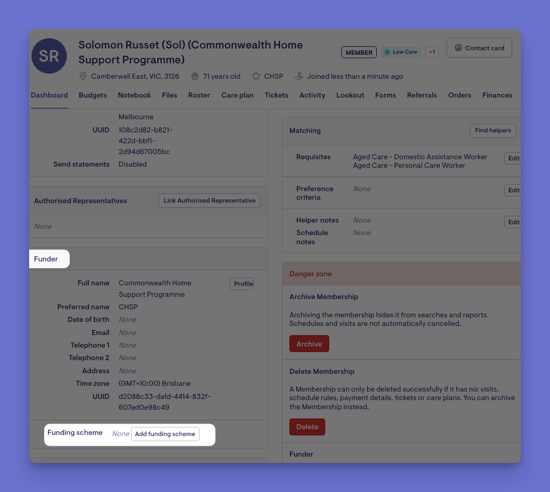
- Scroll down to find the Funder panel. It is located on the left side within the dashboard panels.
- Inside the Funder panel, look at the funding scheme row. Because no scheme has been set up yet, this row shows a dash along with an Add funding scheme button.
- Click the Add funding scheme button. The funding set-up screen will open.
Step 2: Choose the funding scheme type
- At the top of the screen, open the selection bar (it reads Please select an option) and choose the relevant funding scheme. For example, Support at Home, Commonwealth Home Support Program, the Department of Veterans' Affairs, the National Disability Insurance Scheme, and so on.
- The choice you make here determines which details you'll be asked to complete next.
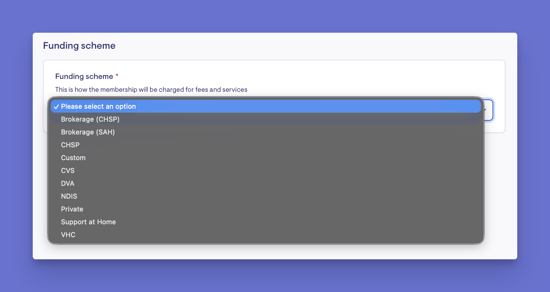
Please note: The type can only be chosen when you first add the scheme. Once saved, it's locked and can't be switched. Home Care Package can no longer be selected for a brand-new scheme, though existing Home Care Package schemes can still be edited as part of the Support at Home transition.
Step 4: Complete the required details for the chosen type
The fields shown depend on the type you selected:
- Support at Home and Home Care Package (transition): optional entry and exit dates, the My Aged Care number, the Care Recipient identifier, and if your organisation uses more than one service identifier, the relevant service identifier. You'll also be asked about transitional arrangements (whether the Member previously received a Home Care Package, how their contributions should be treated, and whether they were a legacy recipient before September 2021).
- Commonwealth Home Support Program (CHSP) : client identifier, consent details, personal details (name, gender, country of birth, language, Indigenous status), accommodation type, household composition, carer status, any disabilities, and the Aged Care reference number.
- Department of Veterans' Affairs (DVA): client file number, name, gender, and whether the Member holds a white card (and the relevant condition if they do).
- Veterans' Home Care (VHC): client file number and the Member's name.
- National Disability Insurance Scheme (NDIS) : participant reference number, how the plan is managed, and the next plan review date.
- Brokerage under Support at Home: the approved level of care and the assigned funded level.
- Brokerage under the Commonwealth Home Support Program, Veterans' schemes, and Private funding: no additional details required.
- Custom funding scheme: choose which Custom scheme applies from the list your organisation has set up.
- If your organisation has set up extra custom fields, you'll also see those at the bottom of the screen to complete.
Step 5: Save
- When you are happy with all the details and ready, click Save. You'll see a confirmation that the funding scheme has been added, and the Funder card will now show the scheme and its details.
Editing a current funding scheme
Use this when a funding scheme already exists, and you need to update its details.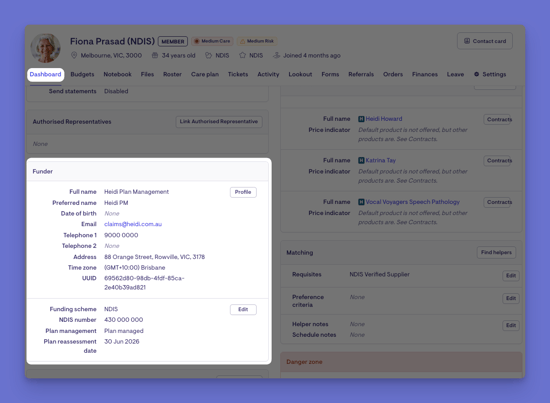
Step 1: Navigate to the Members dashboard
- From the main navigation menu, click Members to open the full list of Members.
- Find the Member you're after - use the search box to type their name, or narrow the list using the filters.
- Click the Member's name to open their profile. This will load their Member dashboard.
- Scroll down to find the Funder panel. It is located on the left side within the dashboard panels.
- Because a scheme already exists, the funding scheme row displays the scheme's details and an Edit button.
- Click the Edit button. The funding set-up screen opens with the details for the scheme currently assigned to this Membership.
Step 3: Update the details
- The scheme type itself is locked and can't be changed here. However, you can update the other details shown, which vary by assigned type (see the detail list in the "adding" section above for what each type includes).
- If your organisation has set up extra custom fields, they appear at the bottom for you to update.
- When you are ready, click the blue Save button.
- A green confirmation banner will appear, confirming that the funding scheme has been updated, and the Funder card will reflect the new details.
Removing a Funding Scheme
Removing a funding scheme is a high-risk action and should only be done when necessary. It is located in the Danger Zone of a Member's profile alongside other destructive actions, such as removing a funder or deleting a membership.
Because this action permanently removes funding and financial data, it is generally better to:
- Edit the existing funding scheme if details need to be corrected.
- Archive the membership if services have ended.
- Avoid removing HCP or CHSP funding schemes unless absolutely necessary.
Important: Removing a Funder will also remove any funding schemes linked to that Funder.
Follow the steps below when you need to remove an existing funding scheme from a membership entirely. For example, if the wrong scheme type was chosen and you need to switch to a different one (since the type can't be changed once saved).
- From the main navigation menu, click Members to open the full list of Members.
- Find the Member you're after - use the search box to type their name, or narrow the list using the filters.
- Click the Member's name to open their profile. This will load their Member dashboard.
- Scroll to the Danger zone panel within the dashboard. It is located on the right-hand side, at the bottom on the panel list.
- Find and select Remove funding scheme, which sits under Funding scheme.
- A confirmation prompt appears asking whether you're sure you want to remove the scheme. Click on Confirm to proceed.
Important cautions:
- Removing a funding scheme also removes any financial accounts tied to that scheme: This is not recommended for a membership set up as a Home Care Package or Commonwealth Home Support Program client.
- After removal, the Funder card returns to showing a dash with an Add funding scheme button, so you can set up a new scheme if needed.
Please note: If Member contacts & dashboard enhancements is turned on for your organisation, the Danger zone is no longer on the Member's dashboard. It has moved into the Member's Settings.
To find Remove funding scheme:
- Open the Member's profile and click the Settings tab (the one with the cog icon).
- In the left-hand menu, under Finance, click Funding scheme.
- Scroll down to the Danger zone panel at the bottom of the page.
Remove funding scheme sits there next to Remove funder. You'll only see the Danger zone if the Member has a funder, and you'll only see Remove funding scheme if that funder has a funding scheme.
Archiving or deleting the membership is no longer in this Danger zone. Those actions have their own page: go to Settings, then under Administrator click Account (the page is headed "Archive or delete").
What happens next
After you add a new funding scheme
- The scheme is applied to the Membership and used to determine how fees and services are charged.
- For government-funded schemes, any financial accounts the scheme needs are opened automatically so the Member can be billed and claimed correctly.
- For Support at Home, if you enter the Care Recipient identifier, the system clears any previously synced funding information and requests fresh data from Services Australia within a few minutes - refreshing the Member's funding sources, entitlements, and contribution details.
After you edit a current funding scheme
- The updated details are used to determine how fees and services are charged.
- For Support at Home, if you change the Care Recipient identifier, the system clears any previously synced funding information and requests fresh data from Services Australia within a few minutes.
- For Home Care Package schemes, setting an exit date closes off the relevant rates from that date, which helps prevent overlapping claims if the Member moves providers.
After a funding scheme is removed
- The funding scheme is permanently deleted from the membership.
- All information attached to the funding scheme is removed, including details such as funding type, reference numbers, approved care levels, and review dates.
- Any financial accounts linked to the funding scheme are automatically removed. This includes accounts used for government funding, client contributions, and other scheme-specific balances.
- Once complete, you will be returned to the member's profile and shown a success message. If the scheme cannot be removed, an error message will be displayed instead.
What Admins, Staff, and Members will see
For Admins and Staffers
-
Can add, edit, or remove the funding scheme, and can see all its details on the Membership, including reference numbers and any transitional arrangement.
For Members (Lookout app)
- Members do not manage funding schemes themselves. The scheme works behind the scenes to determine how their care is funded and
charged.
Troubleshooting
I cannot see the option to add a funding scheme
-
Confirm you have permission to manage the Member's membership and finances.
-
Check whether a funding scheme already exists. Only one scheme can be set per membership, so if one is already there you will see an edit option instead of an add option. To use a different one, remove the existing scheme first.
-
Try signing out and back in.
It says a funding scheme already exists
-
The membership already has a scheme. Edit the existing one, or remove it if you need to set up a different type.
I cannot change the funding scheme type
-
The type is fixed once a scheme is saved. To use a different type, remove the current scheme and add a new one with the correct type.
I completed the steps, but nothing changed
-
Make sure you selected Save.
-
Check for any highlighted errors on required fields. Government-funded schemes require certain reference numbers before they can be saved.
-
If the issue continues, contact support.
Still need help?
If you are still experiencing issues, please contact our Support Team and include:
-
Screenshots, if possible
-
The Member's name or email
-
The exact steps you took
-
Any error messages you received