
This guide covers everything you need to know for Manager access in Lookout Academy. We'll cover how to navigate the Manager Dashboard in Lookout Academy - from tracking progress and sending reminders, to enrolling staff and making sure their profiles are set up correctly.
Before you start
Here are some of the key features that come with manager access in Lookout Academy:
- Can enrol their team members on specific learning journeys and paths.
- Can use the Academy to set up role-based learning for their staff.
- Can use Lookout Academy for their own learning and track their progress and certification.
- Will receive emails when staff have successfully completed a learning path or journey.
Important: Before continuing, please ensure manager access is enabled. If you have not requested and had confirmation that this has been enabled for you, please request here.
You will need to have logged in to Lookout Academy via your Lookout instance first before requesting manager access. This is to ensure it is enabled on the right user profile.
Important: First-time sign-on requirement
Before you can enrol, track, or send reminders to any of your team members, each learner must first sign in to Lookout Academy themselves - via the ellipsis/overflow menu in their Lookout instance. This is a one-time step that creates their learning profile.
Why this matters:
- Signing in through Lookout's single sign-on creates a single learning profile for that person - one that stays linked no matter how they access the Academy in future.
- Their webinar registrations, learning progress, and completions will all stay connected to that one account.
- Once they've done this, they'll appear in your Manager Dashboard, and you'll be able to enrol them, track their progress, and send reminders.
Please note: We cannot manually add learners to the portal through Lookout Academy. Doing so would create a duplicate account, meaning their progress and registrations won't link up properly. The only way to create a valid learning profile is for the learner to sign in through Lookout themselves.
So the first step for any new starter or existing team member is:
- Log in to their Lookout instance as normal.
- Go to the ellipsis/overflow menu.
- Select Lookout Academy.
That's it - their profile is then created, and from that point on, you'll be able to find them in your manager view and start managing their learning.
Top tip: If you're onboarding a new starter, ask them to log in to Lookout Academy as one of their first tasks. Once they've done that, you can immediately enrol them on the right learning for their role.
Manager dashboard
The Manager dashboard gives you a high-level, at-a-glance view of how your team is progressing through their learning. It's designed to help you quickly spot who's on track, who might need a nudge, and where to take action.
It helps you:
-
See how many learners are not started, in progress, completed/passed, or past due
-
Filter by course, group, or user status to drill into specific areas
-
Send reminder messages to learners who need a push
-
Keep your team's learning moving without needing to chase individuals
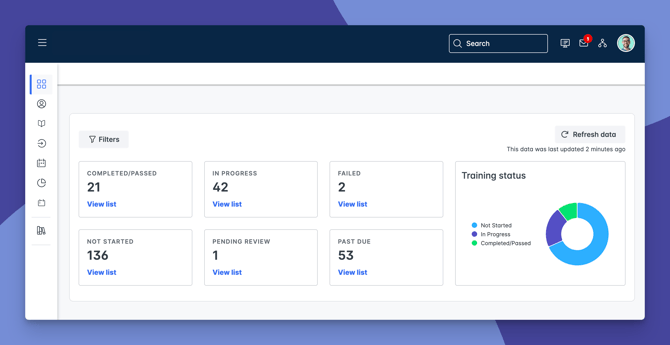
Please note: The dashboard updates your team's progress data at least every 4 hours. You can manually refresh at any time, but the most recent changes may not appear immediately.
Key features
Progress cards
At the top of the dashboard, you'll see cards showing the number of learners in each status - Not Started, In Progress, Completed/Passed, and Past Due. Each card includes a View list option to see exactly who's in that group.
Progress chart
A circular chart gives you a visual summary of the most important statuses at a glance: Not Started, In Progress, and Completed/Passed; so you can quickly see the overall picture.
Filters
You can narrow down what you're looking at by:
-
Courses - search for a specific course, or leave blank to view all
-
Groups - select a single group, multiple groups, or leave blank for all
-
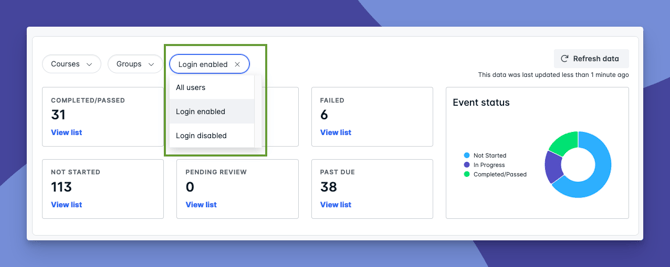
User status - separate enabled and disabled learner accounts
Send reminders
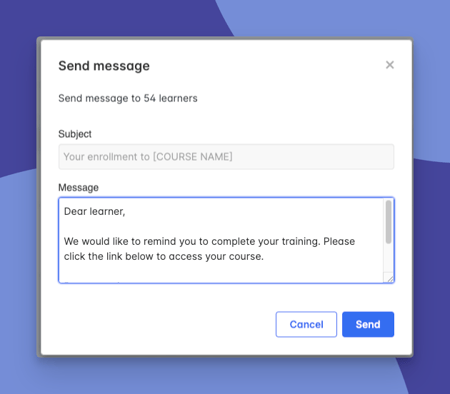
You can send a quick reminder message directly from the dashboard to any learners who need one - individually or in bulk. The system provides a short, editable message that you can tailor before sending.
Course completions graph
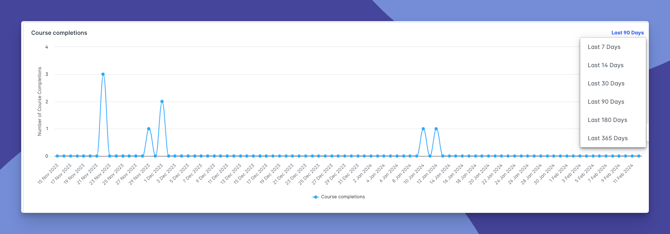
A graph shows course completions over time - defaulting to the last 7 days, but adjustable up to the last 365 days. This helps you spot trends and see when your team is most active.
Refresh data
If you need the very latest numbers, hit Refresh data to manually update the dashboard. By default, data refreshes automatically at least every 4 hours.
Step-by-step instructions
Access the Manager Dashboard
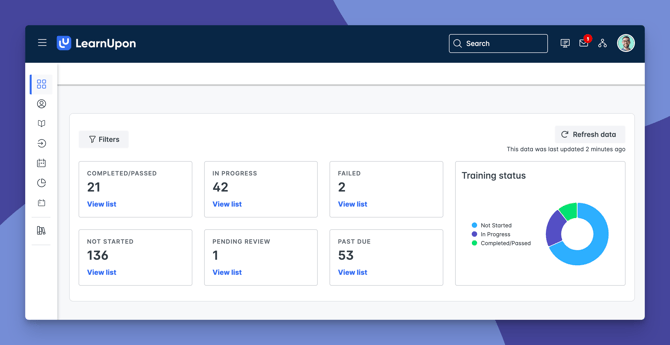
1. Sign in to Lookout Academy via the ellipsis/overflow menu in your Lookout instance.
2. From the main navigation, select Dashboard.
3. The Manager Dashboard will appear by default if you have manager permissions.
Filter your view
If you want to focus on a specific course, group, or user status:
1. Select Filters.
2. Choose one of Courses, Groups, or User status.
3. Make your selection from the dropdown (or leave blank to view all).
4. Click Apply.
To remove your filters, select Clear then Apply.
View learners with a specific status
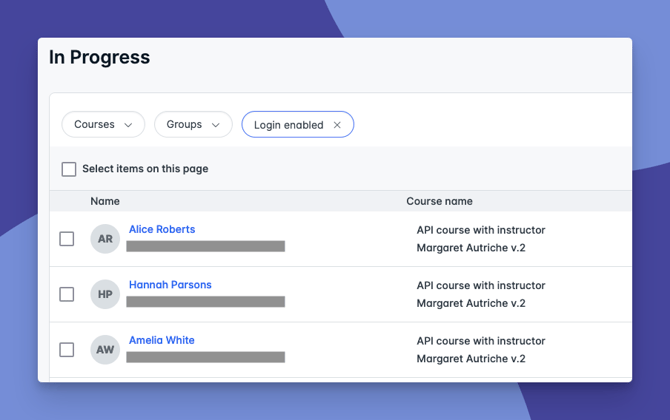
1. From any of the status cards (e.g. Not Started, In Progress), select View list.
2. You'll see a list of learner names and their courses.
3. To narrow the list further, use the filters within the list view - by course, group, or user status - then click Apply.
Top tip: This is a great way to quickly identify who hasn't started their learning yet, or who's past due, so you know exactly where to focus your attention.
Send a reminder to learners
If learners need a nudge to get started or complete their learning:
1. From the Manager Dashboard, optionally apply any filters you need.
2. Select View list on the relevant status card (e.g. Not Started, Past Due).
3. Select all learners in the list, or tick individual learners you'd like to message.
4. Click Send message.
5. Review the suggested reminder text - edit it as needed to make it your own.
6. Click Send to deliver the message.
7. Select Dashboard to return to the Manager Dashboard.
Top tip: Tailoring the reminder message to be friendly and specific (e.g. mentioning the course name or a deadline) tends to get a better response than a generic nudge.
View course completions over time
1. On the Manager Dashboard, scroll to the Course completions graph.
2. By default, it shows the last 7 days.
3. Select the date range to adjust - you can view up to the last 365 days.
This is useful for spotting trends. For example, seeing a spike in completions after you've sent reminders, or identifying quieter periods where your team might need encouragement.
Enrol staff on courses, learning journeys or paths
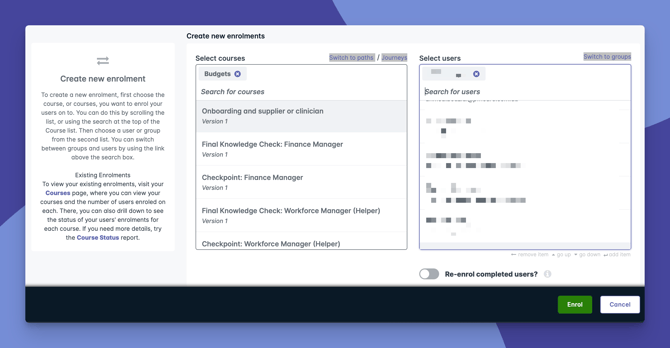
You can enrol your team onto specific courses, learning journeys, paths, or live learning sessions directly from the portal.
- From the main navigation, go to Enrollments.
- Under Create New Enrollment, select one or more courses or learning journeys from the list.
- Select one or more learners from the list of names.
- (Optional) Toggle Re-enrol completed users if you'd like to add learners to something they've already finished - useful for mandatory training or re-certification.
- Click Enroll to confirm.
You'll receive a confirmation once the enrollments are complete. Enrolled learning will appear in your team members' learning area, ready for them to start.
Top tip: If you've got a new starter, you can enrol them onto a full learning journey (e.g. Rostering Manager or Care Manager) in one go - giving them a clear, structured route through everything they need to learn.
Unenrol staff from learning
If you need to remove someone from a course, journey or path:
- From the main navigation, go to Enrollments.
- Find the learner and the relevant course.
- Select the option to unenrol them.
Please note: Unenrolling a learner will remove the course from their learning area. Any progress they've made on that course may be lost.
What happens next?
-
Learners you've sent reminders to will receive the message through the portal.
-
Any filters you've applied are session-based — they'll reset next time you visit the dashboard.
-
Data refreshes automatically at least every 4 hours, or manually whenever you hit Refresh data.
-
As your team progresses, the cards, chart, and graph will update to reflect their latest status.
Troubleshooting
I can't see the Manager Dashboard
The Manager Dashboard only appears for users with manager permissions. If you see a standard learner dashboard instead, your permissions may not be set up yet — check with your administrator.
My data doesn't look up to date
Data refreshes at least every 4 hours. Try clicking **Refresh data** for the latest numbers. If recent changes still aren't showing, allow a few minutes and try again.
I can't find a specific learner
Check your filters - you may have a course or group filter applied that's hiding them. Select Clear, then Apply to reset, and try again.
Ensure they have completed the first-time sign-on requirement outlined here.