
This guide explains how to connect a supplier to the supplier portal, how suppliers set up and use their portal, and how to manage their access from Lookout.
Before you start
- You have the Create, update and delete purchase orders permission. If your organisation uses the updated permission settings, you need Create and update supplier helpers instead.
- The Supplier Portal feature has been enabled for your organisation.
- The supplier is set up in Lookout as a supplier-type Helper (supplier or clinician) and engagement type as a Contractor, with a linked contact record and valid ABN.
Step-by-step instructions
Step 1: Invite a supplier to the Portal
- From the main left-hand menu, navigate to Supplier Helpers under the Procurement section.
- Use the search and filter options to locate the supplier you are after, if needed.
- Click their name to open their dashboard.
-
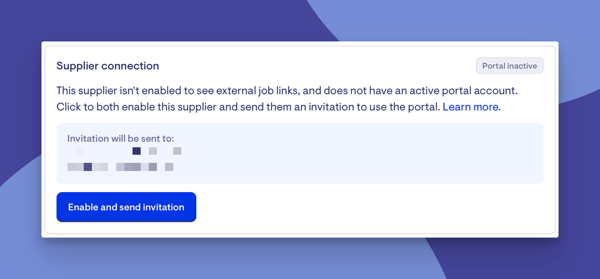
- Enable and send invitation: The supplier doesn't have a portal yet. The tile shows who the invitation will go to.
- Enable supplier: The supplier already has an active portal (for example, through another care provider). Your organisation is connected straight away and no invitation is sent.
- Click the button. A Before you connect to [supplier name] window appears.
- Check that the ABN matches your records, and make sure you have an agreement with the supplier that covers the services and how they'll handle personal and health information.
- Then click Confirm and connect.
- If you chose Enable and send invitation, the supplier will receive an email with instructions to set up their account.
Top tip: A supplier can be sent a portal invitation if they are a supplier or clinician Helper with engagement type Contractor and an ABN, and their business doesn't already have a portal owner. If the business already has a portal, use Enable supplier instead.
Step 2: Supplier completes account setup
The supplier will:
-
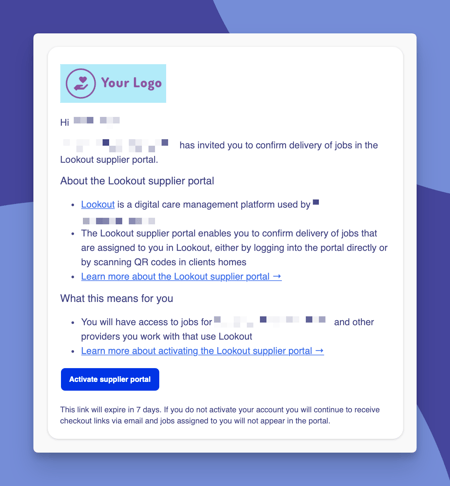
Receive an email inviting them to the Lookout supplier portal.
-
Click the link and set a password (at least 14 characters), then click Activate account.
-
Accept the supplier portal terms of service.
-
Check their business details on the Hi and welcome! screen, then click Save and continue (or Skip for now).
The person who activates the account becomes the portal Owner.
Step 3: Manage the Supplier organisation
From the Supplier Portal, supplier administrators can:
-
Edit company details (Owner only): Update the trading name and description. The ABN is shown but can't be changed.
- Your team (Owners and Admins): Add, edit, archive and unarchive team members, or use Import CSV to add several at once from a template. Imported team members get the Worker role by default.
Step 4: Understand supplier role levels
The Supplier Portal has four role levels:
|
Role |
What they can do |
|
Owner |
Full access. The only role that can edit company details. There can only be one Owner, and they can transfer ownership to another team member (they then become an Admin). |
|
Admin |
Can invite and manage team members, and see and check out all jobs. |
|
Worker |
Can see and check out all of the organisation's jobs, across all the care providers they work with. |
|
Limited Worker |
Can see jobs assigned to them, and can get temporary access to all jobs for a client by scanning that client's QR code. The access expires after 24 hours. Ideal for casual or temporary workers. |
Step 5: How suppliers view and complete jobs
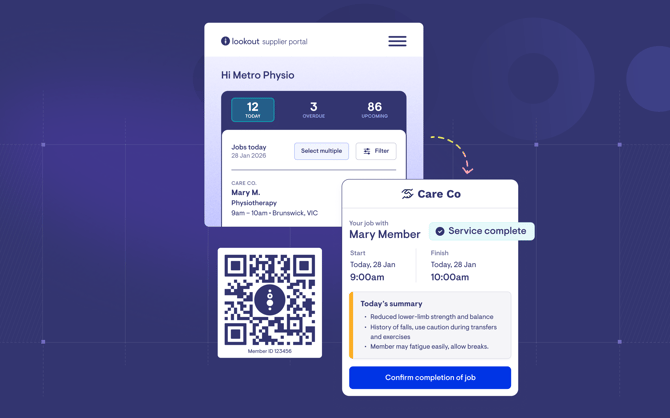
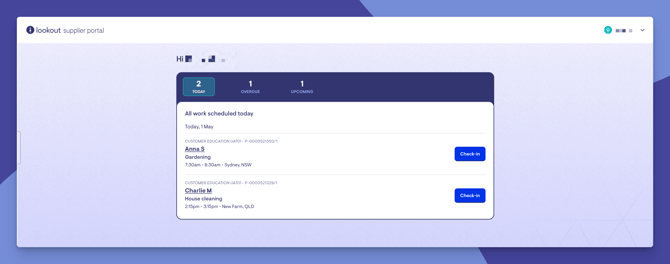
Once logged in, suppliers see a list of jobs (purchase order line items assigned to them):
-
Jobs are grouped by date, with tabs for Today, Overdue and Upcoming.
-
Each job shows which care provider it relates to, and suppliers can use Filter by provider if they work with several.
- Selecting a client shows only that client's jobs.
To complete a job:
-
If the job requires it, tap Check-in on arrival.
-
Tap Checkout and complete any must-dos and forms.
-
On Finalise and checkout, leave a note for the care team, confirm the delivery date and share their location.
-
Tap Confirm completion of job. The job is then marked as Completed.
Manage Supplier connection access
-
From the Helper dashboard, return to the Supplier connection tile.
-
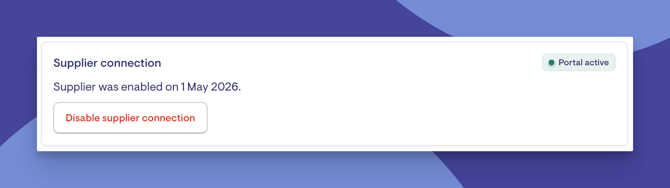
Once the supplier has activated their account, the tile shows Portal active and the date they were enabled.
-
Use Resend invitation if the original link has expired. If the Helper's email has changed since the first invitation, hover over the question mark to see which address the new one will go to.
-
Use Disable supplier connection to revoke access. This disconnects your organisation immediately, removes their access to any published jobs, and applies to the whole supplier business (every Helper with the same ABN). Use Re-enable supplier connection to reconnect.
Not sure how supplier Helpers and suppliers differ? See Understanding supplier profiles in Lookout to learn how they're linked by ABN and who manages each part.
Connection status
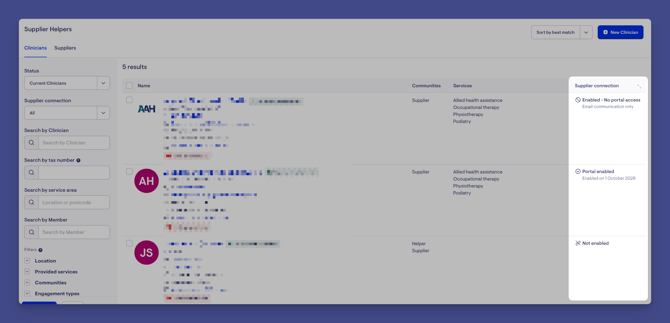
In the Supplier Helpers list, each supplier shows its connection status:
| Status | What it means | How they get your jobs |
|---|---|---|
| Not enabled | The supplier isn't connected to you | They don't |
| Enabled - Pending invite | Connected. This person was invited to the portal and hasn't accepted yet | By email, until they accept |
| Enabled - No portal access | Connected. This person doesn't have a portal login | By email only |
| Portal enabled | Connected, and this person has signed in to the portal | In the portal |
| Revoked | Your team disabled the connection | They don't. They lose access to your open jobs and messages |
Use the Supplier connection filter to show only Enabled, Revoked or Not enabled suppliers.
Suppliers sharing the same ABN are grouped as one business under Procurement > Suppliers. There, you can see the portal owner, the portal status and the Linked Helpers, and disable or re-enable the connection for the whole business.
What happens next?
- Once a supplier activates their portal account, the Supplier connection tile shows Portal active.
- All checkout activity is recorded and auditable.
- Delivery confirmations flow through to your finance and claiming workflows automatically.
- You can view delivery details, must-do responses, and checkout notes directly from the purchase order and/or the Member notebook in Lookout.
Troubleshooting
The supplier says the invitation link has expired
- The supplier will see "Your invitation link has expired or is invalid."
- Invitation links are valid for 7 days.
- You can resend the invitation from the supplier's profile in Lookout.
A supplier worker can't see their jobs
-
Check their role. Limited workers only see jobs assigned to them, plus jobs for clients whose QR code they've scanned in the last 24 hours.
-
Make sure the line item has the correct supplier contact assigned, and that the checkout link has been sent and not revoked.
-
Check that the assigned contact has activated their portal account.
-
Check that the supplier connection hasn't been revoked, and the worker hasn't been archived.
A supplier can see a job, but can’t check out
-
If the job shows Checkout is not open yet or Checkout window closed, the delivery date is outside the checkout window.
-
Check the estimated delivery date and checkout window on the purchase order.
- See our Purchase orders and line items article section for how the checkout window works.
The supplier's organisation details are wrong
-
These details belong to the supplier, and only their portal owner can change them. See Understanding supplier profiles in Lookout to learn more.
"The supplier portal for your organisation has already been activated"
Someone at the supplier already owns the portal. Ask the portal owner to add the person to their team. In Lookout, use Enable supplier rather than sending another invitation.
"A supplier portal user with this email address has already been activated under another ABN"
That email is already used by another supplier business. Check the ABN and email on the Supplier Helper's profile, or use a different email.
Still need help?
If you're still experiencing issues, please contact our Support Team and include:
- Screenshots (if possible)
- The Supplier's name
- The exact steps taken
- Any error messages received