
Overview
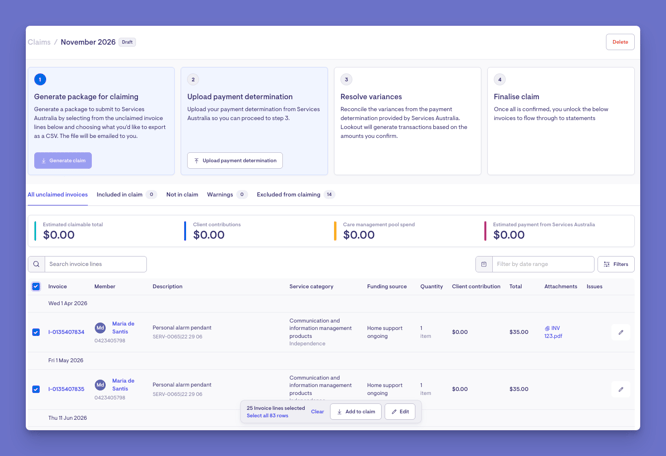
Support at Home claims are created and managed in Claiming > Support at Home. Each published invoice line that meets Services Australia's requirements can be added to a claim. Lookout then generates a claim package for you to upload to Services Australia. When the payment determination comes back, you upload it to Lookout, review any variances and finalise the claim. Finalising updates Member accounts and flows through to the monthly statements.
Support at Home (SaH) claiming process
Before you start
To complete this process, make sure:
- You have an Admin role with the Finance permission.
- The billing run for the period has been published. Only published invoice lines can be claimed.
- You understand the process for Provider payment arrangements for Support at Home
Pre-claiming considerations
You have configured the following:
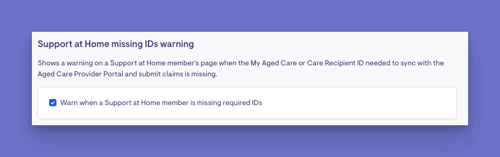
- Each Member has their My Aged Care ID and Care Recipient ID recorded in Settings > Funding scheme. To flag Members who are missing them, turn on Support at Home missing IDs warning in Settings > Finance.
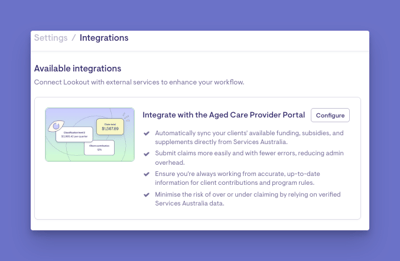
- The Aged Care Provider Portal connection is set up under Settings > Integrations, so funding sources and budgets sync from Services Australia.
- Each Support at Home rate has its claiming code in the External ID.
Each service billed in a published billing run becomes an invoice line, such as one visit or one item delivered by a Supplier. Every line is claimed separately, so each one must meet the requirements below.
What each line needs to be eligible for a claim
- Claiming code: The Support at Home service code for the service delivered. Lines without a valid claiming code are not eligible for claiming.
- Funding source: Lookout asks you to choose only one when a Member holds more than one funding source that could cover the service, such as ongoing and restorative care.
- Care Recipient ID: Each Member needs a Care Recipient ID before their lines can be claimed.
- Attachments: An Invoice or Prescription is required for some assistive technology and home modifications items. Lookout does not flag when a Quotation is needed, so upload one whenever Services Australia requires it.
Claim statuses
When you create your first claim, Draft will appear as it's status.
The following statuses may appear, depending on what stage of your claim is in:
-
Draft: The claim has been created and invoice lines can be added or removed. A claim can only be deleted while it is in Draft.
-
Claim files sent: The claim package has been generated and emailed. It is ready to upload to Services Australia.
-
Processing: The uploaded payment determination is being processed.
-
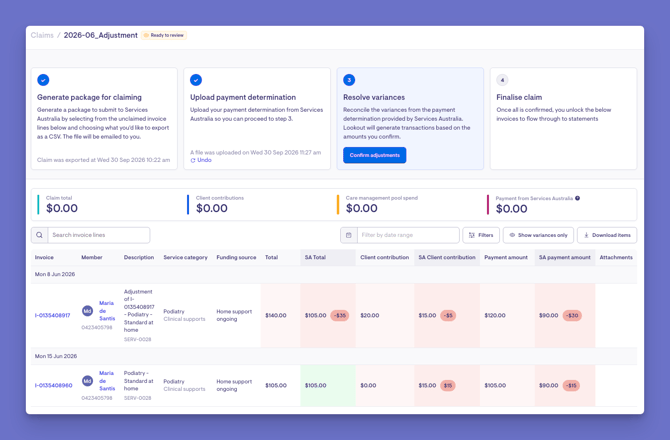
Ready to review: The payment determination has been processed. Variances between the claim and the Services Australia amounts are ready to review.
-
Variances reviewed: The variances have been reviewed and the adjustments confirmed. The claim is ready to finalise.
-
Finalising: Lookout is finalising the claim and creating transactions in Member accounts.
-
Completed: The claim is finalised. Invoices flow through to statements and Member account balances are updated.
-
Deleting: A Draft claim is being deleted.
-
Rolling back: A finalised claim is being rolled back. The invoices, credit notes and transactions created when it was finalised are being removed.
Tabs inside a claim
All unclaimed invoices, Included in claim, Not in claim, Excluded from claiming and Warnings. The Warnings tab shows a count of the invoice lines in the claim that have an issue.
Warnings tab
An invoice line appears on the Warnings tab when it has one or more of these issues:
-
Service code required: The line has no Support at Home service code. Add the claiming code to the rate, or edit the line and enter it.
-
Funding source required: The Member holds more than one funding source for the service. Edit the line and choose the Funding source.
-
Care recipient ID missing: The Member's Support at Home funding scheme has no Care Recipient ID. Add it to the Member's funding scheme.
-
Invalid quantity rounding: The quantity does not match the unit Services Australia accepts. Hourly services must be in 15-minute increments (0.25 of an hour). Other services must be whole numbers.
-
Invoice required, Prescription required or [number] files required: A supporting document is missing. This applies to Assistive Technology and Home Modifications items when the Member holds a high-tier entitlement. Upload the required file to the line.
When a line has a warning, a banner titled "Support at Home claim action required" also appears on the invoice. Warnings resolve automatically once the issue is fixed.
Dismissing a warning
A warning can be dismissed. Dismissing removes the warning from the invoice line. The user is acknowledging that the item may need manual correction to support the Support at Home claim.
Important: A dismissed warning does not fix the line. The line can still be rejected or adjusted by Services Australia.
How to claim using the Support at Home (SaH) portal integration
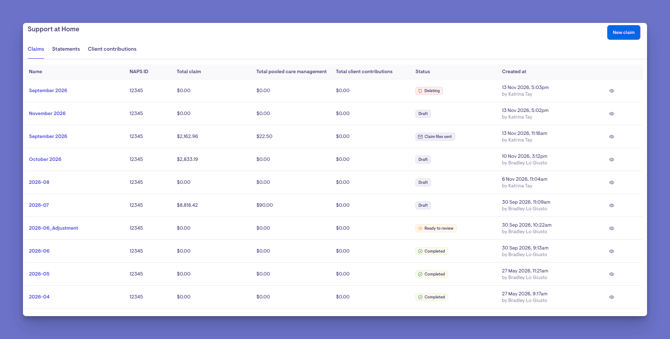
Step 1: Create the claim
- Navigate from the main navigation bar Claiming > Support at Home and click New claim.
- Enter a Claim title, a Start date and an End date, then click Create.
- If your company has multiple NAPS IDs, you’ll be prompted to choose one, as each claim and export is tied to a single NAPS ID.
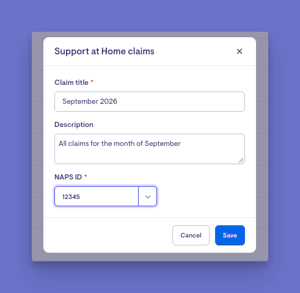
Step 2: Add invoice lines
- On the All unclaimed invoices tab, select the lines and click Add to claim.
- Click Filters to filter by date range
- Use Search to search by invoice line
- Fix anything shown on the Warnings tab.
Top tip: Lookout's claim file already uses the YYYY-MM-DD date format and splits files at 10,000 lines, which is the ACPP limit. The late submission reason and amendment columns are left blank in the file, so add them to the CSV yourself before importing if they apply.
Step 3: Generate and send the claim
- Click Generate claim. Look out for an email from us with a zip file containing the claim CSV and attachments.
- Upload the zip file to the Services Australia portal.
Warning: Do not click Undo on a generated claim if you have already uploaded that claim package to Services Australia.
Reminder: Manually editing the CSV file after export from Lookout or before re-upload is not a supported workflow and will break reconciliation. This causes variances against the government-issued payment determination file and account balance discrepancies between Services Australia and Lookout. Before uploading, ensure every claimed invoice item has a corresponding Lookout invoice captured in the relevant Support at Home claim.
Step 4: Review the payment determination
- When Services Australia approves the claim, download the payment statement.
- Click Upload payment determination and upload the file.
- Review the variances and click Confirm adjustments.
-> Read our article on reconciling your Support at Home (SaH) claim in our detailed guide.
Step 5: Finalise the claim
Click Finalise claim. Finalising updates Member accounts and flows through to statements.
Claim statuses move from Draft to Claim files sent, Processing, Ready to review, Variances reviewed, Finalising and Completed.
Step 6: Finalise and send statements
- On the Statements tab, click Lock period to finalise the month's statements.
- Click Email statements or Download PDFs.
Both contributions owed and collected are shown on the Client contributions tab.
-> View and learn more about Support at home statements in our dedicated article.
Please note: Home Care Packages were replaced by Support at Home from November 2025. The Home Care Packages page only shows earlier claim periods. Members who transitioned are claimed under Support at Home.
Example: One visit through a Support at Home claim
A one-hour personal care visit on Tuesday is checked out by the Helper and invoiced in the weekly billing run. The line is added to the open Support at Home claim with its claiming code and funding source. After the payment determination is reviewed, the claim is finalised, the Member's contribution is recorded and the visit appears on the monthly statement.
Warning: Do not click Undo on a generated claim if you have already uploaded that claim package to Services Australia. Undo reopens the claim so you can change it, but Services Australia will still process the original package. This can cause duplicate claims and a payment determination that does not match your claim in Lookout.
What happens next?
- Finalised claims create transactions in Member accounts and appear on statements.
- Locked statements can be emailed to billing recipients or downloaded.
- Match the Services Australia remittance to your bank account in your finance system, using the Lookout exports as the supporting detail.
What Users / Staff / Members will see
For Admins with Finance permission
Can create, generate and finalise Support at Home claims, and lock and send statements.For Staffers without Finance permission
Can track spend on the Member's Budgets tab, but cannot manage claims or edit financial information.For Members (Lookout App)
- Can view released statements.
- Can view live budget tracking if Care app live budget tracking is turned on in Settings > Finance.
Troubleshooting
A line shows "Service code required"
- Add the claiming code to the rate's External ID, or edit the line and enter the Claiming code.
- If the line should never be claimed, mark it Excluded from claiming.
A line shows "Funding source required" or "Care recipient ID missing"
- Edit the line and choose the Funding source.
- Add the Care Recipient ID to the Member's funding scheme.
Services Australia paid a different amount from what I claimed
- Upload the payment determination and review each variance before you click Confirm adjustments.
- Lookout records the confirmed amounts when you finalise the claim.
I uploaded the wrong payment determination
Click Undo in the Upload payment determination step, then upload the correct file.
A claimed item is not on this month's statement
- Items claimed after a statement period is locked appear on the next statement.
- To include them in an earlier statement, click Unlock period and then Re-finalise claim.
Still need help?
If you're still experiencing issues, please contact our Support Team and include:
- Screenshots (if possible)
- The user's name/email
- The exact steps taken
- Any error messages received