
This guide explains how to access and use Lookout Academy. Your dedicated learning hub - including how to sign in, register for webinars, and enrol on learning journeys and paths. We'll also go through step-by-step instructions on how to best utilise it.
Important: If you require Manager access within Lookout Academy, please review this section of the guide and use the linked form to request it. Thank you.
Before you start
Before getting started with Lookout Academy:
-
You should be logged in to Lookout, or have access to a Lookout environment as a Staffer
-
You'll access the Academy using the same email you use for Lookout
-
Your administrator may have already assigned learning to you, but you're also free to self-enrol at any time
Please note: Lookout Academy uses single sign-on, so you won't need to set up or remember a separate password. As long as you're signed in to Lookout as a Staffer, you can access the Academy seamlessly.

What is Lookout Academy?
Lookout Academy is our dedicated training hub, designed to help you and your team get confident with Lookout faster - and stay that way. Because everything lives in one hub, the Academy is your one-stop place for all the learning and guidance your team needs.
Key features
Single sign-on
Your Academy account is linked to your email address. Whether you access it through Lookout production environment or your own testing environment, as long as you use the same email, your learning progress and webinar registrations remain linked to the same account. No matter where you log in from, you can always pick up right where you left off.
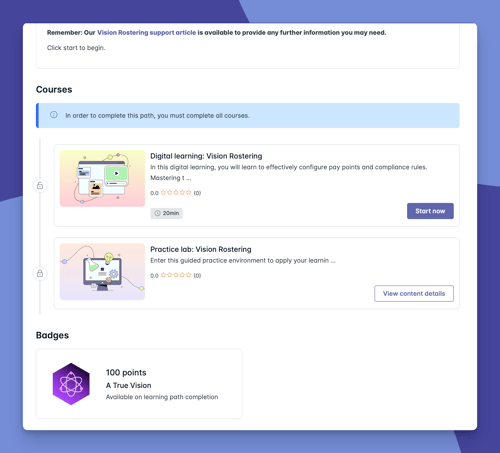
Learning journeys and paths
Structured courses built around specific roles and features. You may find some learning already assigned to you by a manager, or you can self-enrol in anything that interests you.
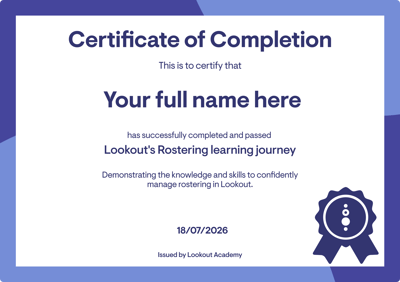
Certificates
Once you complete a learning journey, you'll earn a certificate confirming you're fully qualified in that area — a great way to recognise your progress and demonstrate your knowledge.
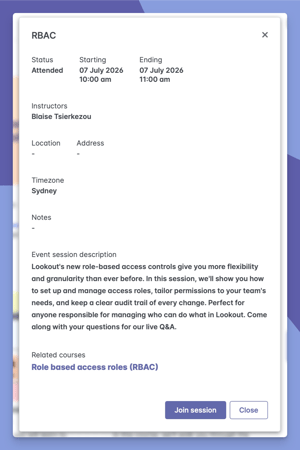
Webinars
The Academy is the new home for our webinars. Even if you miss one of our emails, you can browse upcoming sessions and register with just a click.
Support articles
Our support articles are accessible directly within the Academy, making it the one place to go for resources, guidance, and troubleshooting.
Sign in to Lookout Academy
1. Log in to your Lookout account as you normally would.
2. From the main ellipsis overflow menu, click on Lookout Academy.
3. The Academy will open in a new tab and sign you in automatically - no separate password required.
Please note: Because the Academy is linked to your email address, your progress and registrations follow you across any Lookout environment you use that email in.
Register for a webinar
The Academy is where all our upcoming webinars now live, so you can sign yourself up without waiting for an email.
1. Once signed in, click the Webinars banner or navigate to Live Learning in the top navigation bar.
2. Browse the list of upcoming sessions.
3. Select a webinar to view its details, including the date, time, and what it covers.
4. Click Register to secure your place.
5. You'll receive a confirmation, and the session will be saved against your account.
6. Your registered sessions will now appear on your Academy dashboard under My Live Sessions calendar view. You will note a small blue dot under the date that has registered sessions.
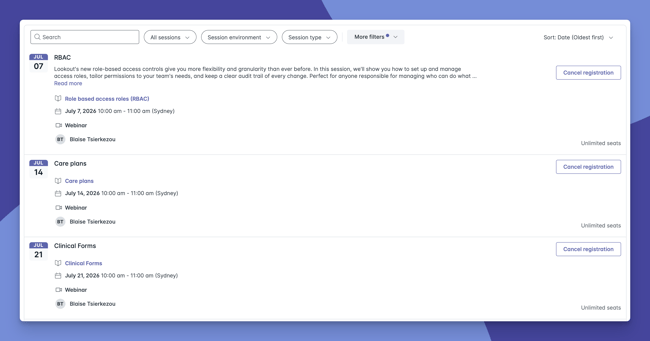
Top tip: Because your registrations are tied to your account, you can see everything you've signed up for in one place, no matter where you log in from.
Enrol in a learning journey or learning path
Learning journeys and paths are structured courses built around specific roles and features.
1. Once signed in, go to the catalogue, where all our learning content lives.
2. Browse or search to find the learning journey or learning path you'd like to take. These automatically appear at the top of our catalogue content, but you can use the filters to narrow down your search.
3. Select a learning journey to see an overview of what's covered and what you'll learn. You'll also see the full journey laid out below
4. Click Enrol to add it to your learning.
5. You'll receive an email confirming you've been enrolled and the course will appear in your learning area, ready for you to start whenever you like.
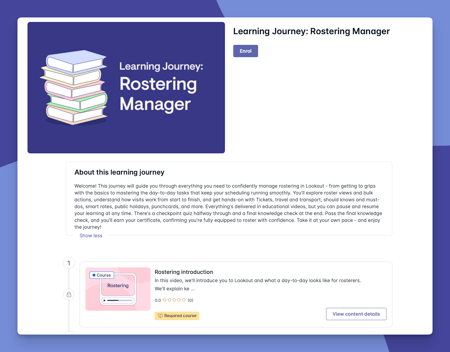
Top tip: When you log in, you might find learning already waiting for you, set up by a manager. And if you'd like to explore more, you can self-enrol at any time.
Earn badges, points, and certificates
As you work through your learning, you'll be rewarded with badges, points, and certificates - recognising your progress along the way.
Learning paths
When you complete a learning path, you'll receive a badge, along with points added to your account. These contribute towards your overall level and your position on the Academy leaderboard.
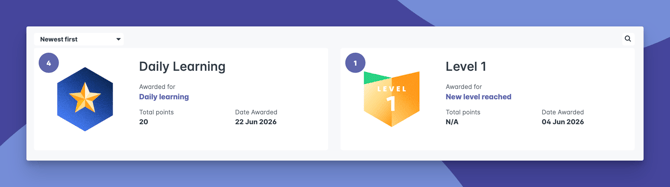
Learning journeys
Learning journeys go a step further. When you fully complete a journey and pass the final knowledge check, you'll be awarded both a badge and a certificate.
Your certificate confirms you've successfully completed and passed the journey, demonstrating a confident, working knowledge of that area in Lookout - and that you're ready to put it into practice.
Top tip: Don't worry if you don't pass the final knowledge check first time - you can retake it as many times as you need. If anything feels a little fuzzy, head back to the earlier videos for a refresher, or take a look at our handy reels.
Track your achievements
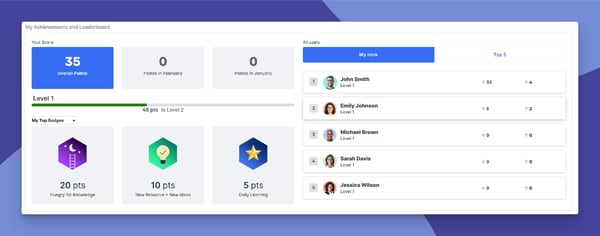
You can keep an eye on your progress at any time from your Home screen.
- From your Home screen, look beneath any learning in progress.
- You'll find the My achievements section, which tracks your level, your points, and your latest badges.
- Click View all to see the full picture, including where you rank amongst other users on the points leaderboard.
-
Filter the leaderboard by group to see how you rank against your colleagues, or by all Academy users to see where you stand amongst everyone.
What happens next?
- Any learning assigned to you, or that you self-enrol in, will appear on your Home Screen My learning area, or under the My learning ready to start.
- Your progress saves automatically, so you can stop any part of your learning at any time. Needed to pause an educational video partway through? No problem - Academy remembers where you paused, and with a simple click back into the learning when you're ready, you're right where you left off.
- Webinars you register for are saved to your account and visible in one place.
What Managers and Learners will see
For Managers
-
Can enrol their team members on specific learning journeys and paths.
-
Can use the Academy to set up role-based learning for their staff.
-
Can use Lookout Academy for their own learning and track their progress and certification.
- Will receive emails when staff have successfully completed a learning path or journey.
Need manager access? Please request here
To learn more, please take a look at our dedicated article: Manager access in Lookout Academy.
For learners (staffers)
-
Will see any learning assigned to them by a manager when they log in.
-
Can browse the full catalogue and self-enrol on additional learning at any time.
-
Can register for webinars and access our support articles directly within the Academy.
Troubleshooting
I can't see the "Lookout Academy" option in my menu
Access to the Academy may not be enabled for your account yet. Check with your administrator to confirm that your access has been enabled.
My progress or registrations aren't showing
Make sure you're accessing the Academy using the same email you use elsewhere in Lookout or tour testing environment. Your account, progress, and registrations are all linked to your email address.
I'm having trouble finding my way around
This article is here whenever you need a refresher on signing in, registering for webinars, and enrolling on learning.
How do I enrol Helpers to courses?
Currently, Academy is only available to users set up as Staffers on the desktop app. While videos are available showing how a Helper would use the app, these are intended as informational content for care managers, rostering and workforce management teams to support informed configuration decisions & workflow management.