Overview
We’re expanding Lookout’s real-time capability with new insights that help teams stay ahead of budget performance. This kind of insight will make it easier to prevent overspending, reduce underspending, and ensure every client receives the support they are entitled to.
This insight will run automatically, require no budget plans, and are driven by:
- Funding sources (synced via Services Australia)
- Tracked expenses (across Lookout generally)
Support at Home budgets aren’t limitless, and seeing potential issues early means providers can act before they impact care or service delivery.
Funding sources (synced via Services Australia)
We have two insights around funding sources for memberships:
1. Overspend: Running out of money
This alert notifies you when a client is nearing the limit of their available funding. It looks at both current spending and future (forecasted) spending to help prevent overspending.
When it triggers
The system will trigger a warning when the client is expected to reach 100% of their total available funds, which includes:
- Subsidy
- Supplements
- Commonwealth unspent funds
What funding is included
For Home Support, the alert considers the combined total of:
- Ongoing funding – $2,000
- Restorative funding – $3,000
- End-of-life funding
- Assistive Technology (AT)
- Home Modifications (HM)
- Other relevant budget categories
2. Leaving Money on the table
This alert helps identify when a client’s ongoing funding isn’t being fully used for active care during the current quarter.
When it triggers
The alert will activate when the client has used less than 80% of their ongoing funds for care delivery in the quarter.
How insights behave
How do they work?
These insights are generated automatically overnight. If a membership meets any of the conditions described above, an insight will be created for that membership for the current quarter.
Once created, the insights can be utilised in several ways, just like other insights within the system. They can help you:
- Filter memberships in the UI
- Trigger workflows or create tickets
- Review and dismiss insights as needed
What do they look like?
For our initial release, these insights are being implemented via our existing insights implementation. They will consist of four components:
- Dashboard widget
- Membership filter
- Membership insight banner
- New funding source breakdown on real-time dashboard
Let’s now take a further look into these components.
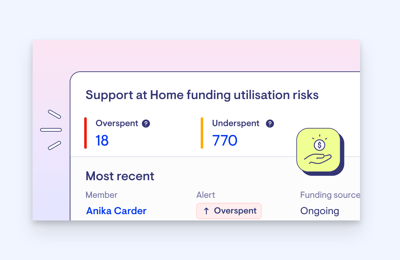
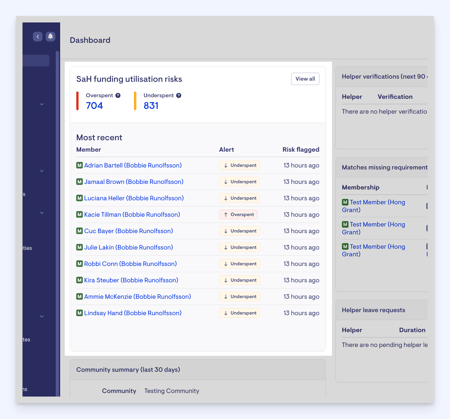
Dashboard widget
A dashboard widget will display a list of recently created insights related to funding sources. These can be clicked through to see in total, or a particular segment can be clicked on.
These links will take the user through to the membership list view.
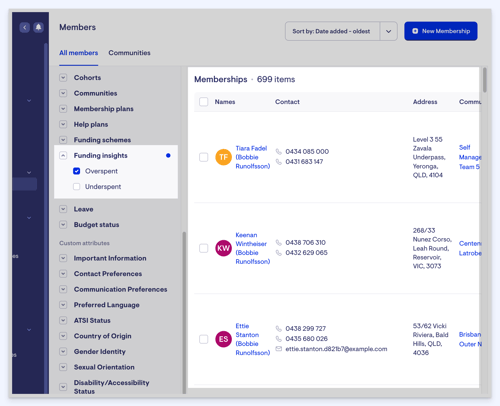
Membership filter
A new filter will be made available, allowing users to filter by one or more of the available funding source insights. These become populated by default when clicking through from the above widget.
Membership dashboard
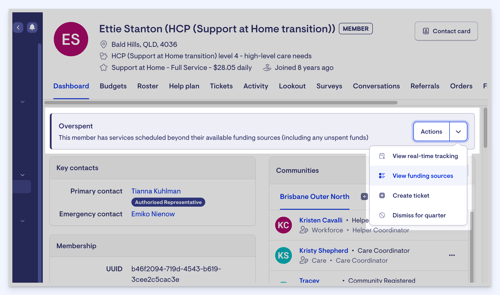
Insights will appear on the membership dashboard, making these insights both highlighted and discoverable.
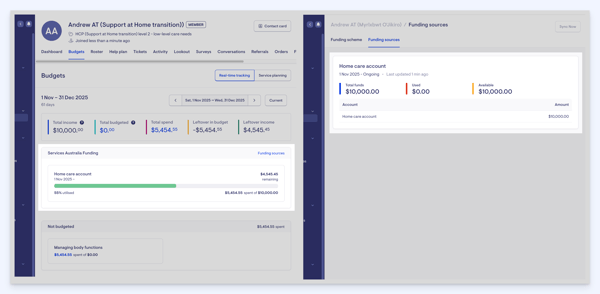
Funding source breakdown
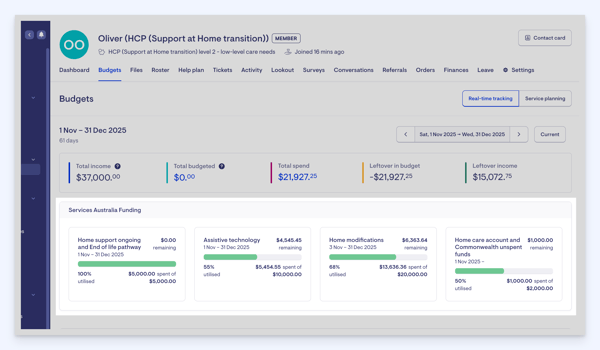
The funding sources providing income to the membership will now be displayed with greater granularity than a single rolled-up amount.
Below is an example of a membership with all available funding sources. Please note that:
- Ongoing and short-term budgets are rolled up together
- Assistive technology, and home modifications are separate
- Home care accounts and unspent funds are rolled up together
- Unspent funds are drawn-down from when available
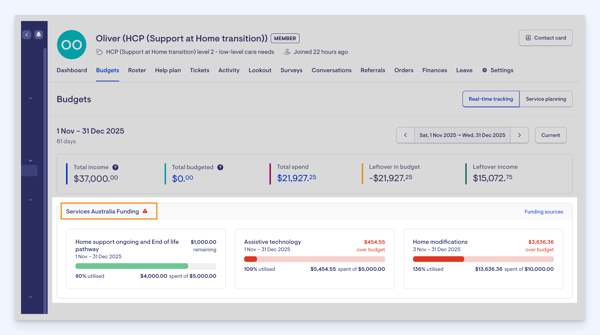
Here is an example of an overspent warning.
Below is an example of an underutilised warning.
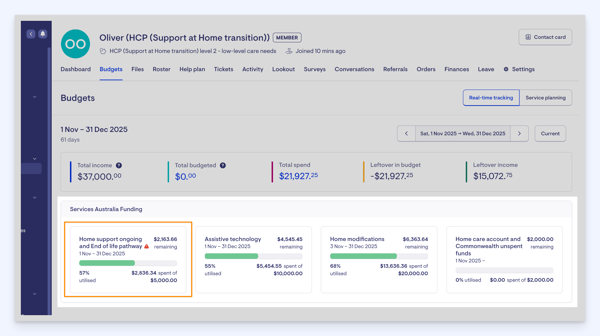
You’ll also see here an AT zero funding membership - this entails that they don’t have any specific funding, but can use unspent funds towards their approved care.