
The Lookout supplier portal is where your organisation manages its team, lists the services and areas you cover, receives requests and jobs from care providers, and messages their coordinators. This guide covers getting set up and finding your way around.
For accepting, declining, rescheduling and completing the actual work, see our companion guide, Managing jobs on the supplier portal.
The supplier portal
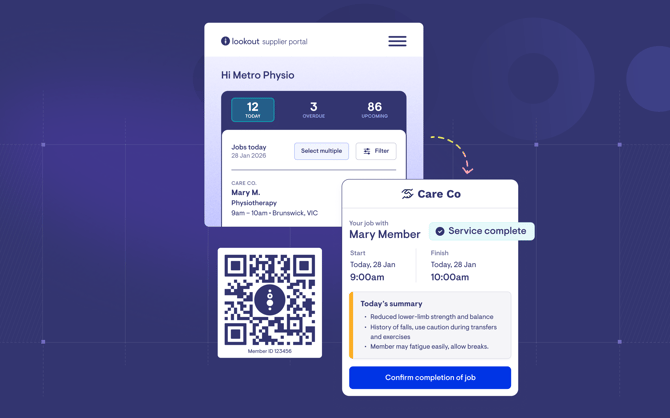
The Lookout supplier portal is your organisation's home base for working with the care providers who use Lookout. From here, you set up your team, tell providers what services you offer and where they are available, receive requests and jobs, and keep in touch with the people coordinating care.
The portal works on phones, tablets, and computers - anything with a web browser.
Looking for how to handle jobs and requests? This article covers the setup and the portal overview. For accepting or declining service requests, rescheduling, cancelling, and completing jobs, see our Managing jobs on the supplier portal article.
Before you start
- You have received an email invitation from a care provider using Lookout, or you have been added to your organisation's supplier portal by your Owner or an Admin.
- You have a valid email address and can access that email account to receive your invitation or login code.
- You'll have a device with a web browser.
Please note: Only the first person to activate supplier portal access for your organisation becomes the Owner. Team members added afterwards by the Owner or an Admin won't receive an invitation email. Instead, they go to the login page, enter their email address, and use the one-time code sent to them.
To activate your organisation's supplier portal for the first time, follow the Getting set up steps below.
If you've been added by your Owner or an Admin, follow Joining your organisation's supplier portal instead.
Getting set up
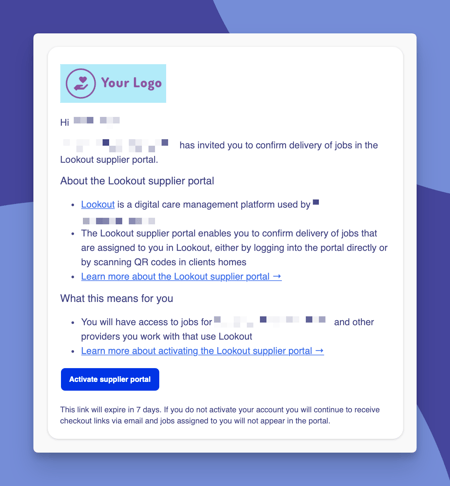
Step 1: Accept your invitation
- Open the invitation email from Lookout and click the link to set up your account.
- Create a secure password (minimum 14 characters).
- You'll then be asked to verify your email using a one-time passcode sent to your inbox.
Step 2: Log in to the Portal
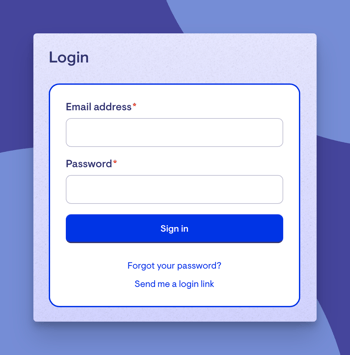
- Go to the supplier portal login page and enter your email address - you’ll be emailed a one-time code.
- Enter the one-time code.
- Read and accept the terms and conditions to continue.
- You can set a password in the supplier portal for future logins, or continue to log in using one-time codes.
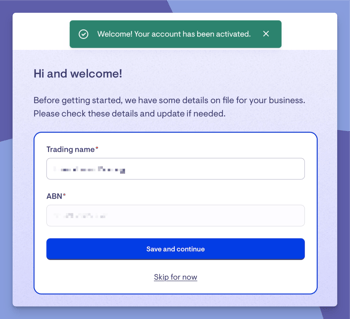
Step 3: Set up your organisation (Owners only)
- Edit your organisation details - trading name and time zone if required.
Joining your organisation's supplier portal
If your organisation's supplier portal has already been activated, your Owner or an Admin will add you to the team. You won't receive an invitation email. Instead, you log in using a one-time code sent to your email address.
Step 1: Request your login code
-
Go to the supplier portal login page.
-
Enter your email address and click Send login instructions.
Step 2: Log in to the portal
-
Open the email from Lookout.
-
Either click Confirm and login, or enter the access code on the login page.
Please note: Your access code and login link expire after 5 minutes and can only be used once. If they expire, request a new one from the login page.
Step 3: Accept the terms of service
-
Read the terms of service in the pop-up window.
-
Tick "I have read and agree to the terms of service & privacy policy", then click Accept and continue.
Step 4: Set a password (optional)
If you'd like to log in with a password in future:
-
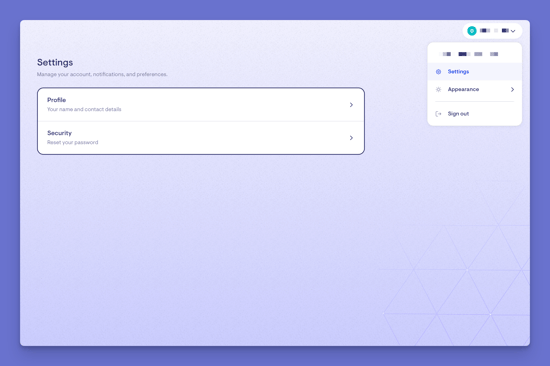
Click your name in the top-right corner, then go to Settings › Security to create one.
-
It must be at least 14 characters.
Top tip: You can keep logging in with one-time codes if you prefer. A password is optional.
Logging in next time
Once your account is active, you can log in with a one-time code or with your password.
Logging in with a one-time code
-
Go to the supplier portal login page.
-
Enter your email address and click Send login instructions.
-
Open the email from Lookout and either click Confirm and login, or enter the access code.
Logging in with a password
-
Go to the supplier portal login page.
-
Click Sign in with email and password.
-
Enter your email address and password, then click Sign in.
Please note: If the terms of service have been updated since you last accepted them, you'll be asked to read and accept them again before you continue.
Understanding your main screen
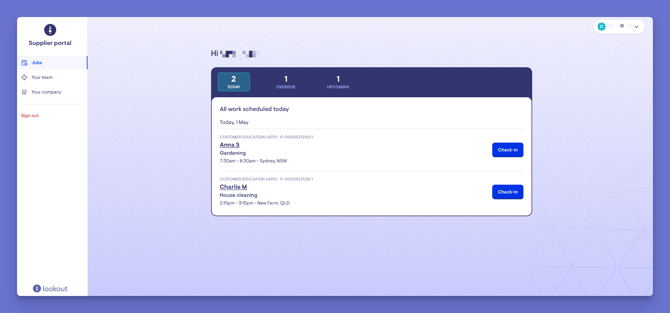
Your main screen is built around three things: the navigation menu on the left, your jobs in the centre, and your account and settings options.
Please note: What you see in the menu depends on your role. Workers see Jobs only. Owners and Admins see everything below except Your company, which only the Owner can see. See our section below on Roles for more detail.
The navigation menu
- Service requests: Requests from care providers asking whether you can take on a service, before it becomes a confirmed job.
- Jobs: Your confirmed work. Owners and Admins see this split into Scheduled and Completed. Workers see one list grouped into Today, Overdue and Upcoming. This is your default landing area.
- Messages: Conversations with the care providers' coordinators.
- Your team: The people in your organisation who can use the portal.
- Service areas: The regions you cover.
- Services: The services you offer.
- Your company: Your company details.
- Sign out: Log out when you're finished.
Service requests
Care providers send you service requests when they want to check whether you can take on a piece of work, before it becomes a confirmed job. You'll find them under Service requests in the menu.
Please note: Only Owners and Admins can see and respond to service requests.
How you respond depends on the request:
-
If the provider has asked for a quote, you'll see Decline and Send a quote.
-
If the provider has already set the details and price, open the Options menu to Accept job, Request changes or Decline.
-
If you've sent a quote and need to correct it, open Options and choose Replace quote. The care team will only see your replacement.
To ask the care team a question about a request, use the Discussion section for that request.
Accepting a request doesn't create a job straight away. The care provider is notified, then reviews and books the work. Once it's booked, it appears under Jobs.
For how to respond to a request - accepting, declining, or proposing a change - see our Managing jobs on the supplier portal article.
Your jobs
Your jobs are the confirmed work you're delivering. If you're an Owner or Admin, they're grouped into Scheduled (your current and upcoming work) and Completed, so your day-to-day work stays separate from your finished history. If you're a Worker, you'll see one list grouped into Today, Overdue and Upcoming. For each job, you'll see the client's name, the service, the care provider it relates to (helpful if you work with more than one), the scheduled time, and the suburb and state.
Please note: To protect client privacy, the full address only shows from when a job is scheduled until its checkout window closes. After that, or once the job is completed or cancelled, only the suburb and state are shown. Instructions, Must-dos and the handover summary only appear while the checkout window is open.
For checking in and out, completing Must-dos, rescheduling, and cancelling, see our Managing jobs on the supplier portal article.
Your team
Your team is where you add the people in your organisation who'll use the portal, set what each can do, and keep access up to date as people come and go. You'll find it under Your team in the left-hand menu.
Please note: Only Owners and team members with Admin access can see and manage this section of the Supplier portal.
Roles
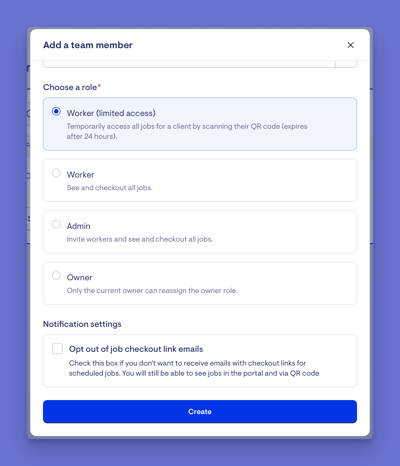
The Supplier portal gives each team member one of four roles. Your role controls what you can see and do:
| Your role | What you can do |
|---|---|
| Owner | Everything an Admin can do, plus edit company details and transfer ownership. There's only one Owner per organisation. |
| Admin | Add, edit and archive team members (except the Owner), see and check out all of the organisation's jobs, respond to service requests, message care teams, and manage Service areas and Services. |
| Worker | See and check out all of the team's jobs once a checkout link has been sent. |
| Worker (limited access) | See and check out jobs assigned to them once a checkout link has been sent. Scanning a client's QR code unlocks that client's jobs for 24 hours, or until they sign out. Scanning again restarts the 24 hours. This option is great for freelance or gig workers. |
Managing your team
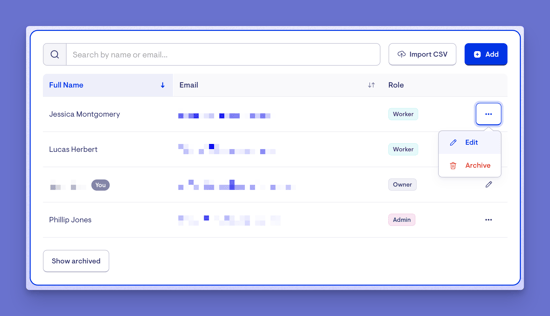
From the Your team section, Owners and Admins can:
-
Add a team member individually (they start as Worker (limited access)), or add or update several at once using Import CSV (new people start as Worker).
-
Edit a team member's details and role.
-
Archive a team member to immediately revoke their access, and unarchive them later if they need access again.
Please note: Admins can manage anyone on the team, including other Admins, except the Owner. Only the Owner can transfer ownership. See Transferring ownership below.
Adding a team member individually
- In the left-hand menu, click Your team.
- Click the blue + Add button. A pop-up window will appear.
- Fill in the new team member's details:
- Full name (required)
- Email (required). This is the email address they'll use to log in. You can't use an email that's already on your team, or one already used for another supplier's portal.
- Time zone (required)
- Choose a role: Worker (limited access), Worker, Admin or Owner. Each option briefly explains what that person will be able to do. Owner is greyed out unless you're the Owner.
- When you are ready, click the blue Create button to add your new team member.
- A green banner will confirm "Team member has been added successfully." The new team member will appear in your team list.
Please note: No invitation email is sent when you add someone. Let them know they've been added so they can log in by following the steps outlined in the Joining your organisation's supplier portal section of this article.
Top tip: Each person chooses whether to receive job checkout link emails under Settings › Notifications › Checkout links. Owners and Admins can't change this for someone else.
Editing a team member's role or details
- In the left-hand menu, click Your team.
- Find the person you want to update - scroll the list or use the search box to search by name or email.
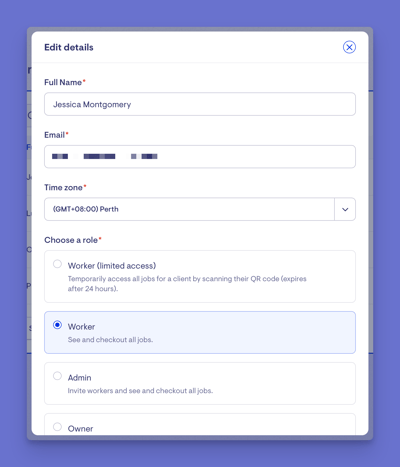
- Click the ellipsis (...) button next to their name and choose Edit. On your own row, click the Edit icon instead. Their Edit details screen will open.
- You can update their name, email, time zone or role. When you change the role, the on-screen description shows what that level of access allows.
- Click the blue Save changes button to apply the changes.
- A green banner will appear confirming your actions.
Remember:
- Once someone has verified their email address, it can't be changed. You'll see "This email has been verified and cannot be changed."
- You can't change your own role.
- Archived team members only show Unarchive. To edit them, unarchive them first.
- Admins can't edit or archive the Owner.
Transferring ownership (Owner only)
- In the left-hand menu, click Your team.
- Click the ellipsis (...) button next to the person's name and choose Edit.
- Under Choose a role, select Owner.
- Tick "I understand and want to transfer ownership".
- Click Save changes and transfer ownership.
Please note: There can only be one Owner. Once you transfer ownership, you become an Admin.
Messaging the care team
The portal has a built-in Messages area, so you can talk to the provider's coordinator without leaving Lookout.
Please note: Only Owners and Admins can message care teams. See the Roles section within this article.
-
Open Messages from the menu to see all your discussions, and click Message to open one.
-
To message about a specific request, open it and click Discussion with the care team.
-
To message about a specific job, open the job and click Send a message, or choose View discussion from the job's menu in your jobs list. If there are no messages yet, you'll see "No messages yet. Send a message to your work coordinator about this job."
Please note: Once a job is complete or a request is cancelled, its conversation is locked. To ask about something else, message the care team on an active job for that client.
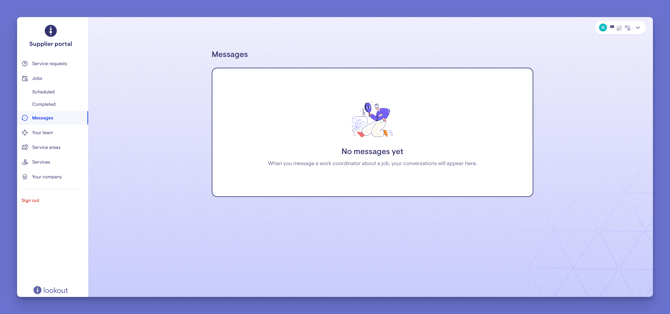
Top tip: Messages are the cleanest way to raise a question about a request or job, because everything stays attached to the right piece of work.
Service areas
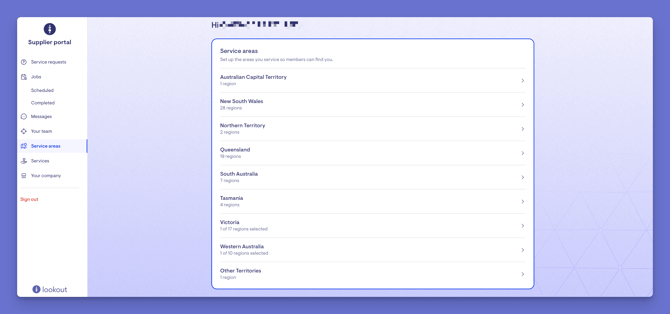
Open Service areas from the main left-hand menu to set the regions you cover, so care providers can find you.
Please note: Only Owners and Admins can manage service areas. See the Roles section within this article.
-
If you haven't set any areas yet, click Add service area.
-
Click the state or territory you want to update.
-
Select the areas you cover.
-
You can choose all of the Cities and urban centres or Regional and remote areas, specific regions, or individual localities. Use the search box to find places quickly.
-
When ready, click Save selection.
-
A green banner will confirm that your service areas have been updated. Repeat for any other states or territories you cover.
Top tip: The Service areas page shows how many regions you've selected in each state, so you can quickly check your coverage. To change a selected state's areas later, just click it again.
Listing the services you offer
Care providers can find you by the services you offer, so it's worth keeping this list up to date.
Please note: Only Owners and Admins can see and manage services. See the Roles section within this article.
-
Open Services from the menu.
-
Click Add services (or Choose services if you haven't added any yet).
-
Select the services your organisation provides, then save.
-
To remove a service you no longer offer, click Delete next to it and confirm.
Your services list helps care providers find you in Lookout, but their care team isn't told when you change it. If you start or stop offering a service, let your care providers know as well. Your services and rates are still covered by the agreements you have with each provider.
Your company
Editing your company details
Please note: Only Owners can see and edit your company details. See the Roles section within this article.
-
In the left-hand menu, click Your company.
-
The Edit company details screen will open. Update your Trading name if needed.
-
Your ABN is shown for reference and can't be changed here.
-
Add or update your Description, such as your availability, opening hours, or anything else that might help care providers.
-
When ready, click the blue Save changes button.
-
A green banner will confirm "Company details have been updated successfully."
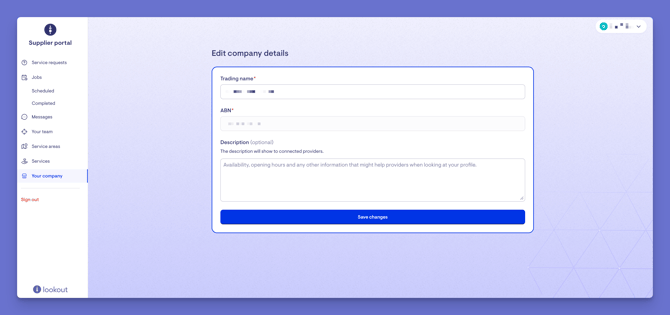
Top tip: Your company details and description are visible to the care providers you're connected with, so it's worth keeping them accurate and up to date.
Additional settings
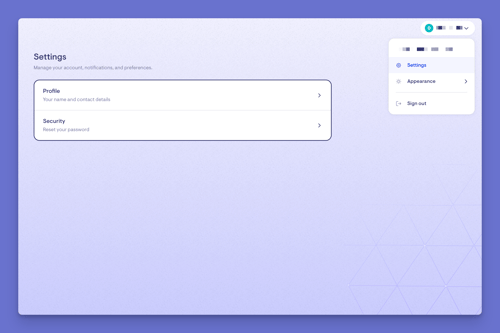
Click your name or the arrow in the top-right corner to open a short additional settings menu. From here, you'll find three options:
- Settings - manage your own account, including your profile and contact details, notification preferences, and security (such as changing your password).
- Appearance - switch between light and dark mode to suit your preference, or set the supplier portal to match your system defaults.
- Sign out - log out of the Supplier portal.
Making the most of the supplier portal
- Set your service areas accurately so you only get requests you can actually cover.
- Use Messages rather than outside email so every conversation stays tied to the job or request it's about.
- Give each worker their own login and the right role, so they only see what they need.
What happens next?
-
With your account set up, your team added, and your services and areas listed, you're ready to receive work.
-
Care providers can find you and send service requests.
-
Once you accept a request, the care provider reviews and books it, and it then appears under Jobs for you to deliver and complete.
Next step: See Managing jobs on the supplier portal for responding to service requests, rescheduling and cancelling, and checking in and out of jobs.
Troubleshooting
My invitation link has expired or is invalid
-
Your invitation has either expired (links last 7 days), or someone else in your organisation has already activated the supplier portal.
-
If no one in your organisation has activated the portal yet, ask the care provider who invited you to resend your invitation.
-
If someone has already activated it, ask your Owner to add you under Your team, then follow the steps outlined above in Joining your organisation's supplier portal.
Please note: You might instead see "The supplier portal for your organisation has already been activated. Ask the account owner to add you as a contact."
I can't log in
-
Check you're using the email address you were invited with, or the one your Owner or Admin added you with.
-
If you see "Invalid email or verification code.", your code may have expired (codes last 5 minutes) or already been used. Go back to the login page and request a new one.
-
If you log in with a password and see "Invalid email or password", click Forgot your password? to reset it. You'll find it after choosing Sign in with email and password.
-
If you were added by your Owner or an Admin and haven't created a password, click Send me a login link to log in with a code instead.
-
If you still can't log in, you may have been archived. Ask your Owner or an Admin to unarchive you under Your team.
I'm supposed to have access, but my email isn't working
-
If you haven't activated your invitation yet, login emails won't be sent.
-
Open your invitation email and click Activate supplier portal instead.
-
If you request a password reset and no email arrives, you may still have an invitation waiting.
- Use your invitation email to activate your account.
- If someone else in your organisation has already activated the portal, ask your Owner to add you under Your team, then follow the steps above under Joining your organisation's supplier portal.
- Check your junk or spam folder, and make sure you're using the email address you were invited or added with.
A worker only needs one-off access
- Add them as Worker (limited access).
- They can scan the client's QR code on site to see that client's jobs for 24 hours, or use the checkout link emailed to them for a job. See the Roles section above.
I can't see any jobs, or I can't check in/out
This is covered in the jobs guide - see Managing jobs on the supplier portal.
Still need help?
If you're still experiencing issues, please contact our Support Team and include:
- Screenshots (if possible)
- The Member's name
- The exact steps taken
- Any error messages received