
This guide explains how to export data from completed surveys using the data export function, what you need before starting, and what to do if something is not working.
Overview
Lookout enables you to export survey responses into a file that can be opened in a spreadsheet application or shared with external systems. This makes it easier to analyse feedback, report on outcomes, and transfer survey data to other tools.
Survey responses may be submitted by Members, their Authorised Representatives, and other people connected to a Member, such as Sharers, Funders, Billing Recipients, and Emergency Contacts. Staffers can also complete surveys on behalf of these individuals. Exports can include responses from all respondent types or be filtered to a specific group.
Exports are generated using reusable templates. A template defines which survey data is included in the export and how it is structured. Once created, a template can be reused at any time to generate up-to-date survey response exports.
Example uses for exported survey data
After exporting survey responses, you can use the data to:
- Identify trends in satisfaction, engagement, or service quality over time.
- Review feedback to understand what is working well and where improvements may be needed.
- Compare responses across different services, programs, teams, or locations.
- Measure outcomes before and after changes to processes, care plans, or initiatives.
- Monitor response patterns and participation rates for ongoing surveys.
- Create charts, dashboards, or reports for management and stakeholders.
- Support quality improvement, auditing, and compliance activities with measurable feedback.
- Analyse Staffer feedback to identify training, support, or operational improvement opportunities.
- Share survey results with external systems or reporting tools for further analysis.
- Combine survey responses with member or household data to better understand the experiences of specific groups or cohorts.
Survey columns
When exporting survey responses, you can choose from a range of columns that provide information about the survey, the respondent, the questions asked, and the answers provided. These columns help you tailor the export to your reporting and analysis needs.
For most use cases, you'll primarily need the survey details, respondent information, question details, and answer values. Additional member or household fields can also be included alongside survey data to help identify whose responses you're reviewing. Below are the summarised survey data columns.
Survey details
Information that identifies the survey and the specific survey request.
- Survey name: The survey title.
- Survey ID: The survey's internal identifier.
- Survey request ID: The identifier for the specific survey instance that was sent.
Timing
Information about when the survey was sent and completed.
- Survey request timestamp: When the survey was sent or scheduled.
- Completed at: When the respondent submitted their response.
Respondent details
Information about the person who completed the survey.
- Respondent profile ID: The respondent's internal identifier.
- Respondent role: The respondent's relationship or role (for example, Member, Authorised Representative, Primary Contact, or Staffer).
Question details
Information about each survey question.
- Question name: The question as displayed in the survey.
- Question key: A unique code identifying the question.
- Question type: The response format, such as rating scale, multiple choice, free text, or date.
- Question order: The question's position within the survey.
- Scale minimum: The lowest available value for rating-scale questions.
- Scale maximum: The highest available value for rating-scale questions.
Response values
The answer is provided for each question.
- Answer (readable value): The human-readable response.
- Number value: The stored numeric value for rating scales or single-choice questions.
- Multiple selections: The selected options for multi-select questions.
- Date value: The chosen date for date-based questions.
Note: Survey response exports contain one row per answer rather than one row per respondent. To make responses easier to identify and analyse, consider adding member or household fields, such as member name or membership plan, to your export.
Before you start
To complete this process, make sure:
- Have understood our Data exporter article and how to use the data export function
- You have data export access permissions for your admin account. Without this, the data export area will not appear.
- You are logged into the web app (this feature is not available in the mobile app).
- A template built on survey answers already exists, or you have permission to create one.
Step-by-step instructions
Step 1: Navigate to the data export area
- Open the main navigation menu.
If the menu is minimised, click on the > button that appears on the top right of the main navigation menu. - Scroll down, click on the Data export option.
Tip: The data export area sits alongside the reporting and data import tools in the main menu.
Step 2: Open and create a survey template
- Open and create a survey template using the data export function. If you're unsure,
Visit our Data exporter article first. - On the data export screen, you will see a list of existing templates. Each one shows its name, a short description, and the type of information it is built on. If a template built on survey answers already exists, select it to open it.
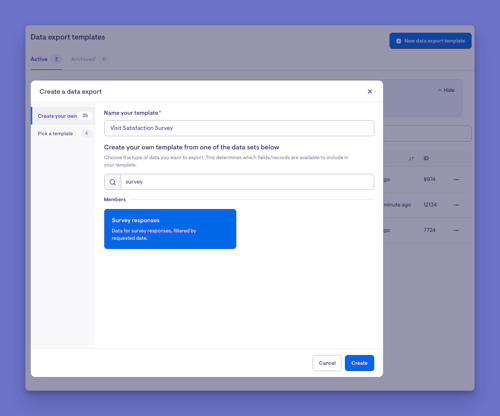
- If one does not exist yet, create a new template and choose the survey answers data source. This tells the system you want to work with the answers people have given to your surveys.
Step 3: Run the export
- Select the export option on the template screen.
- Select the file format you want. You can pick a spreadsheet-style file or a data file suited to other systems. Available formats are .CSV and .JSON.
- Confirm to start the export.
You should now see:
- A message confirming the export has started
- The export appearing in the export history for that template
- A status showing the file is being prepared
Step 5: Download the finished file
- Open the export history for the template.
- Search and find the recently created export. Its status will update as it works through preparing your file.
- Once it is ready, select the download option next to it to save the file.
What happens next?
After you start an export:
- The system gathers all the matching survey answers in the background, so you can keep working while it prepares the file.
- The finished file appears in the export history with a download link.
- The export history records who requested it, when it was requested, and the settings that were used, so there is a clear record.
-
Large exports may take a little time to finish, and the status updates as it progresses.
What people will see
For Admins
- Can create and manage survey export templates, choose which details to include, apply date ranges and role filters, run exports, and download the finished files.
- Can view the full export history, including who ran each export and when.
For Staffers
- Staffers with data export access can use the same tools as admins. Staffers without that access will not see the data export area at all. Note that staffers can also be the people whose survey answers appear in an export, since they can complete surveys themselves.
For Members and their Representatives (mobile app)
- Members and their Authorised Representatives complete surveys through their own experience and do not see the export tools. Their answers feed into the exports that admins run.
Troubleshooting
I cannot see the data export option
- Check that your account has data export access permissions.
- Confirm you are logged into the web app rather than the mobile app.
- Try logging out and back in.
The export button is greyed out
- Make sure you have chosen a date range, as this is required before an export can run.
- Confirm the template is built on the survey answers data source.
I ran the export but the file is empty or missing answers
- Check that your date range covers the period when the surveys were scheduled.
- Review any role filter you applied. If it is set to only one type of person, other answers will be left out.
- Confirm that surveys were actually completed in that period.
The file is not ready yet
- Larger exports take longer to prepare. Check the status in the export history and check back shortly.
- If an export appears stuck, you can check on its status from the export history.
Still need help?
If you are still experiencing issues, please contact our support team and include:
- Screenshots (if possible)
- The name or email of the person running the export
- The exact steps taken
- The date range and any filters you used
- Any error messages received