
Before You Start
To use the new Care plans feature, make sure:
-
- The new Care plans (Clinical care) feature is enabled for your organisation
- You have workflow access permissions (to create and manage care plans)
- Connected Care is enabled if your organisation is going to use Lookout Assist-generated summaries to support third-party suppliers through purchase order workflows
For Lookout Assist-powered care plan features (optional):
-
- Make sure Lookout Assist is enabled for your organisation
- The Care Plan and assessments agent is turned on within Lookout Assist settings
- The Handover Summaries agent is turned on within Lookout Assist settings
Please note: From June 1, the navigation tab on Member profiles will change from "Help plans" to "Care plan" for all organisations - regardless of whether the new Care Plans feature is enabled. This is a navigation change only; your existing data is not affected.
Key workflow differences
Help plans
-
Previously called Help Plan.
-
Admin manually creates a help plan by selecting a template and assigning it to a Member.
-
Only Lookout could create or update care plan templates.
-
When choosing a template, select from the available templates that define the categories and structure.
-
When filling in entries, Admin manually writes each entry, choosing from suggested topics within each category.
-
Fixed set of categories (e.g., "Who I am", "Goals", "How to support me") defined in a YAML file.
-
Admin manually edits individual entries when updating the help plan based on assessments, clinical updates and identified risks.
Care plans
Care Plans introduce two categories of change: base care plan updates and Lookout Assist-powered functionality.
Base care plan updates:-
The Help plan tab is renamed Care plan
- A care plan overview including six dedicated rich text sections: Summary, Directives, Clinical Summary, Conditions, Medications and Allergies
-
Care plan templates can be managed by Admins from Settings
- Dynamic categories & items managed through the admin settings - can be added, reordered, archived, marked as required or optional
-
Choosing a template is the same; templates still define the structure, categories, and prompts
-
Same manual option when filling in entries, with an improved UI
- Existing care plan entries and templates are automatically converted into the new flexible system in the background.
- Audit visibility is now in a centralised location, rather than each individual entry
Lookout Assist-powered functionality:
- Lookout Assist can generate a new care plan from documents (IAT, assessments, clinical summaries) and additional Member context
-
Lookout Assist auto-generates all entries from source documents and the admin reviews/edits before applying
-
Lookout Assist can propose updates to an existing care plan based on events such as form submissions, selected incident actions and selected observation investigations
- Lookout Assist can identify care plan risks for supported funding schemes and propose risk categories, levels, reasoning and mitigations
- Lookout Assist drafts must always be reviewed by a staff member before publishing, keeping a human in the loop
Top tip: When this feature is turned on for your organisation, all existing care plan entries and templates from the old system are automatically converted to the new flexible system in the background. All your data is preserved - no manual migration is needed.
Important: Once the new care plans feature is are enabled, the previous Help plan workflow is no longer available and cannot be reverted to.
New Care plan overview sections
The Care Plan overview now includes six dedicated rich text sections that can be edited separately. These sections help organise important Member information in a clearer way for staff and Helpers.
- Summary: a high-level overview of the Member and their care needs.
- Directives: advanced health directives or key directions relevant to their care delivery.
- Clinical Summary: recent clinical context, relevant assessment findings and care considerations.
- Conditions: known health conditions relevant to support and care delivery.
- Medications: medication information relevant to care planning.
- Allergies: allergy information relevant to safe care delivery.
Setting up Care plan templates (Admin)
Step 1: Navigate to Care plan settings
- Navigate to the overflow settings in the ellipsis and click Settings.
- Under the Care section, click Care plans.
Step 2: Create a new template
- Click the + New care plan template button.
- Give it a name and a unique key (identifier).
- Click Save.
You'll be taken to the template editor, where you can add categories and items.
Step 3: Add categories to your template
Categories are the sections that make up a care plan (e.g., "Goals", "Who I am", "How to support me").
- Select an existing category from the available list, or create a new category.
- To create a new category, type a name in the "Add category" section and click Add category.
- You can edit the title and description of any category directly on this page.
- Arrange categories in the order you want them to appear.
- Mark categories as required or optional where this is available.
Top Tip: Categories are customisable per organisation. You can create, rename, and remove categories to suit your organisation's needs. You're no longer limited to the built-in default categories.
Step 4: Add items within each category
Items are the prompts or structured entries within each category. They help guide staff when completing a care plan. For each item, you can set:
- A title (the heading staff will see)
- A label (a short reference identifier)
- Body text (the pre-written prompt or starter text that guides staff when completing the item)
Click Add item to add more items within a category. Click Delete to remove one. Repeat for each item you want included in the template.
Step 5: Save your template
-
Click Save to save all your changes.
-
You can return to edit templates at any time. You can also archive templates you no longer need, and unarchive them if you need them again later.
Please note: Archiving removes a template from active use but preserves historical data.

Manage Care plan categories
- Go to Settings > Care plans > Categories.
- Create new categories to support your organisation’s care planning structure.
- Rename existing categories where needed.
- Archive categories that should no longer be used.
- Review category usage before archiving categories attached to existing templates or care plan entries.
Important: Use category changes carefully. Categories help structure care plans across your organisation and should be reviewed as part of care governance before significant changes are made.
Archiving categories removes them from active use but preserves historical data.
Create a Care plan (manually)
Step 1: Navigate to the Member's Care Plan
-
Open the Member's profile, loading into their dashboard.
-
Click the Care plan tab in the header navigation.
-
If no care plan exists yet, you'll see a prompt: "Let's create this Member's care plan" with an option to create a care plan.
Step 2: Start a New Care Plan
-
Click Create a care plan.
-
Select a care plan template to use - this defines the categories and structure for the plan.
Step 3: Add Items to Each Category
-
Navigate through each category section of the care plan.
-
Click Add new item to create items within a category.
For each item, fill in:
- A title
- The body (the detailed content of that care plan item)
Click Save when you're done with each item.

Step 4: Edit Existing Items
-
From any category page, click on an existing item to make changes.
-
Update the title or body as needed.
-
Click Save to confirm, or Cancel to discard your changes.
Top Tip: Only users with appropriate permissions will have edit controls. Read-only users can view the care plan but cannot make changes.
Lookout Assist and Care plans
The following features are only available when your organisation has Lookout Assist enabled, and the Care Plan and assessments agent enabled. To learn more about Lookout Assist and all of its features, take a read of our article: Lookout Assist.
Step 1: Start Lookout Assist generation
From the Member's dashboard, click their Care Plan tab.
If no care plan exists yet, you'll see a prompt: "Let's create this Member's care plan" with an option to Generate a care plan.
Step 2: Configure the generation
- Select a care plan template - this tells Lookout Assist what structure and categories to use for the plan.
- Upload or attach documents - such as IAT file, assessments, referral files, clinical notes or existing care plan documents for Lookout Assist to read.
- Optionally add additional member information as free text.
- Click Next to begin generation.
Step 3: Wait for the draft
You'll be taken to the draft proposal page. While Lookout Assist is working, you'll see a message that the "care plan is being generated".
The time needed can vary depending on the size and number of sources.

Once complete, the draft will appear organised into the categories from your selected template (e.g., goals, who I am, tasks, etc.).
If Lookout Assist is enabled, risks aligned to Strengthened Aged Care Standards will also be identified.
- Review all generated sections carefully.
- Review categories and entries.
- Review risks if generated.
- Edit any section that needs adjustment.
- Click Save and publish only when you are satisfied the care plan is accurate and complete.
Important: A notice will appear reminding you that "This care plan draft was generated by Lookout Assist. AI can make mistakes. Please carefully review before saving."
Lookout Assist-Powered Care Plan Updates
When a Member already has a care plan, Lookout Assist can propose updates based on new care plan events. Events may include submitted form responses, incident actions that have been sent to the care plan, and observation investigations that have been sent to the care plan.
When a member already has a care plan, Lookout Assist will propose reviewing the care plan based on new information.
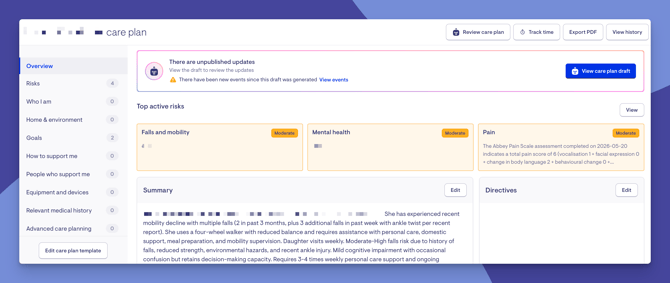
Step 1: View events
From the Member's care plan page, you may see a View events link showing recent events (such as completed forms or assessments) that are relevant to the care plan.
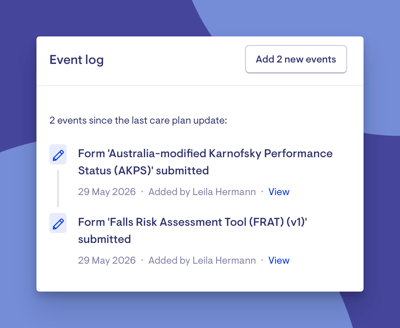
Click View events to see the event log.
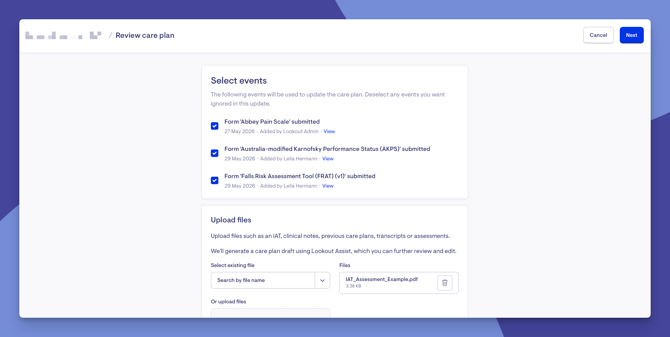
Step 2: Choose what Lookout Assist should consider
Click Review care plan to start the update process.
You can:
- Select or deselect events - choose which recent events (like form responses) Lookout Assist should consider.
- Attach documents - upload or select existing files for Lookout Assist to review.
- Add additional member information - provide free-text context or instructions (e.g., "Falls risk has increased, suggest new mitigations").
- Click Next to submit.
Step 3: Review the updated proposal
Lookout Assist will generate proposed updates. You can navigate between categories to see what changed. A sparkle icon will be added next to the updated category to indicate when a category has been updated
Click View changes on any section to see a side-by-side comparison of the current version vs. the updated version. Manually edit sections where required.
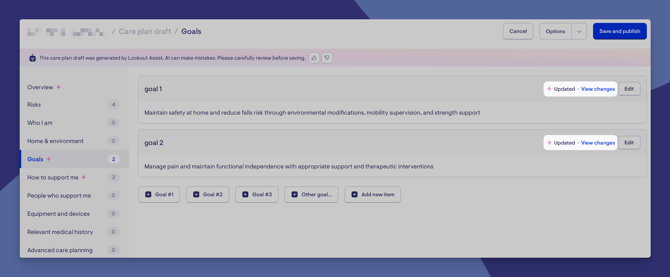
Approve, regenerate, or delete Lookout Assist proposals
When a Lookout Assist-generated draft or update is ready for review:
- Save and publish - Applies the proposal to make the care plan updates live. Only staff can do this; Lookout Assist will never automatically publish a care plan.
- Regenerate draft- If the result wasn't satisfactory, click the Options menu and Regenerate draft to re-run the generation.
- If a proposal has failed, you can Retry to re-run the generation.
- Delete draft- For new care plans, if you don't want to use the proposal, you can delete it entirely.
Viewing an unpublished care plan proposal
If a care plan draft has already been generated but not published, and new events occur after the draft was created, Lookout can help you add those new events and regenerate the draft before publishing.
Step 1: Find and open the unpublished draft
- Use the care plan status column from the Membership list to identify Members with unpublished updates or pending events where available.
- Open the Member profile.
- Click the Care plan tab.
- Look for the banner: "There are unpublished updates — View the draft to review the updates".
- Click View care plan draft.
Step 2: Review the draft
- Review the message that the draft was generated by Lookout Assist and should be carefully checked before saving.
- Click View sources to see the documents and events used.
- Review category entries and proposed risk changes, flagged by the sparkle icon.
- Click Edit next to any section that needs adjustment.
Step 3: Add new events to the draft (where required)
If new observations, incidents or completed assessments/forms occur after the draft was generated, a warning appears saying there have been new events since this draft was generated.
- Click View events to open the pop-up showing the new events.
- Click Add new events to confirm.
- Click Next to regenerate the draft.
- Wait for Lookout Assist to process the updated draft.
- Return to the draft when notified and review the updated content.
Important: Adding new events regenerates the draft. Any manual edits made to the current draft will be overwritten. Only proceed when you are comfortable losing those edits.
Step 4: Publish the updated care plan
- After reviewing the updated draft, click Save and publish in the top-right corner.
- The draft becomes the live care plan.
- Helpers and staff with access can see the updated care plan according to their permissions.
Care Plan Risk Detection
For members receiving Home Care Package (HCP transition), Support at Home (SAH), or CHSP services, Lookout Assist can also identify and extract qualitative risks aligned to strengthened aged care standards.
These risks are pulled into the care plan with:
-
- Risk category (e.g., Falls)
- Risk level (e.g., High, Medium, Low)
- Context (why this risk exists)
- Mitigations (strategies to manage the risk)
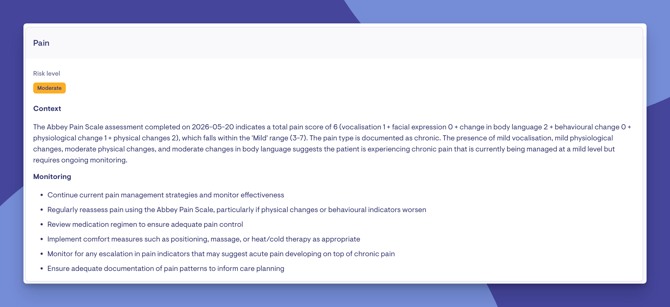
Risks appear as a dedicated section within the care plan, visible to both administrators and support workers. Staff should review all generated risks for quality and relevance before publishing.
Unsupported funding schemes include NDIS, DVA, VHC and Private where risk standards are aligned to different regulatory requirements. You can still generate a care plan for these funding schemes, however a banner may indicate that the care plan will not display risks aligned with those standards.
View Care plans as a Helper & Member
Helpers will now see critical risk and summary information right on the visit screen, and both Helpers and Members (including their loved ones who have access) can now browse the full care plan content through the app. This gives frontline workers the clinical context they need at the point of care, and keeps families informed and connected.
On the visit screen (Helper):
-
- The top 3 active risks now appear as cards when a helper views a visit, showing the risk category name and severity level (colour-coded as low, moderate, high, or very high)
- The care plan summary is displayed beneath the risks, in an expandable format so helpers can quickly see key information about the member they're visiting
Dedicated care plan page for Helpers/Members:
-
- A full care plan page is also accessible from the Member's profile
- It shows the summary at the top
- Below that, links to view risks (with a count), clinical summary, conditions, medications, and allergies
- Each care plan category (goals, how to support me, etc.) is listed with entry counts, so helpers can navigate into the sections relevant to their visit
Risks page:
-
- Helpers and Members can view all active risks in an expandable list
- Each risk shows the category name, severity badge (colour-coded), background/reasoning, and mitigations
- Reasoning and mitigations display as rich-formatted text
Important: Once the new care plans feature is are enabled, the previous Help plan workflow is no longer available and cannot be reverted to.
What happens next?
After setting up care plans:
-
All staff with appropriate permissions can view the Member's care plan from the Care plan tab on the Member's profile.
-
The care plan is organised into your custom categories, with items clearly structured within each section.
-
If Lookout Assist generated the care plan, the plan only becomes live after a staff member reviews and publishes it.
-
Helpers can view the care plan (including summary and risks) for Members they are connected to, helping them deliver informed, consistent care.
What different users will see
For Admins
- A new Care plans section in Settings where you can manage templates (create, edit, archive/unarchive).
- Full control over categories - create, rename and delete.
- Can create, edit, and publish care plans for Members.
- If Lookout Assist is enabled: can generate care plans via Lookout Assist, review proposals,
For Care Staff / Coordinators
- Can create and edit care plans manually using templates.
- Can view the care plan from the member's profile under the Care plan tab.
- If Lookout Assist is enabled: can generate Lookout Assist care plans, attach documents, review and approve/regenerate/delete proposals.
- See banners when Lookout Assist update proposals are ready for review.
For Helpers
- Can view the member's care plan summary from the Care plan tab on the People screen and from the visit screen.
- Can navigate between care plan categories to see detailed items.
- Can see identified risks (level, reasoning, and mitigations) where applicable.
- If no care plan exists yet, they'll see a message: "This Member's care plan isn't currently available".
For Members
- Members will see an updated view of their care plans, including categories, and risks.
Troubleshooting
I don't see the "Care plans" section in Settings
- Check that the new Care Plans feature has been enabled for your organisation
- You need administrator-level or care management permissions to access settings
I don't see the option to generate a care plan with Lookout Assist
- Lookout Assist must be enabled for your organisation
- The Care Planner agent must be turned on within Lookout Assist settings
- You need workflow permissions
The care plan generation failed
- You'll see a message: "Care plan generation failed — Please retry. If it keeps failing, check the documents and try again."
- Click Retry to re-run the generation
- If it keeps failing, check that the attached documents are readable and try uploading different files
I can't edit the care plan
- You need workflow or care management permissions to edit care plans
- If you can view but not edit, contact your administrator about updating your permissions
The "Help plans" tab has changed to "Care plan"
From June 1, the navigation label changes for all organisations. This is expected and doesn't affect your data.
Why can’t I reorder items in the care plan anymore?
The latest update introduced a redesigned care plan experience. In this new layout, items are displayed as cards within each section, and manual reordering (drag-and-drop or move up/down) is no longer supported. This is intentional behaviour in the new care plan experience and not a system issue. However, you can use this workaround:
- Delete the item
- Re-add it
New items are always placed at the bottom of the section, so this allows you to adjust positioning indirectly. If order matters, it’s best to carefully plan the sequence when creating items or templates, and use the delete-and-re-add workaround to adjust the order after creation.