
This guide explains what the All Reports area is, why it's useful, and how to run Lookout's ready-made reports. It covers the two report groups - general and financial - the access needed to see them, and how to apply date ranges, along with troubleshooting for common issues.
New to reporting terms? Before you dive in, you may find it helpful to review our Reporting: Glossary of terms, which explains key words like templates, columns, filters, and export formats in plain language.
What is all reports?
All reports is Lookout's collection of ready-made, templated reports. Rather than building anything, you simply choose a report, set a date range, and run it - making it a great, quick way to pull common information out of Lookout.
Think of All Reports as off-the-shelf reporting. If you need something more tailored - your own choice of columns, custom filters, or data the fixed reports don't include - that's the job of the Data exporter instead.
Need more control than a ready-made report? All Reports offers fixed, templated reports. If you need specific columns, custom filters, or data these reports don't cover, see our Data exporter article instead.
Why it matters
All reports gives your team fast, reliable access to the information they need for day-to-day work, without any setup. It's useful because:
- Requires no configuration: The reports are ready to run.
- Covers common needs: Member, Helper, ticket, visit, and financial information.
- Available to most staff: General reports can be run by any staffer (subject to community access).
Before you start
Access to all reports depends on your permissions:
- By default, all staffers can see the all reports area and run the general reports.
- The financial reports are only visible to staffers with the Finance Admin permission.
- Access can be further limited by community permissions - staffers with restricted access may not see the Reports menu at all.
Top tip: If you can see general reports but not financial ones, you likely don't have the Finance Admin permission. Ask an administrator at your organisation to review your access.
Navigate to all reports
-
From the main navigation menu, click All reports under the Reports section. If all sections are expanded, you may need to scroll to find it.
- The screen is split into two groups:
-
General reports: Information about Members, Helpers, tickets, and visits. These are great for everyday, general-purpose needs.
-
Financial reports: Financial information framed around Members and Helpers, and extending to reports such as accounts payable, transaction reports, and payroll reports.
-
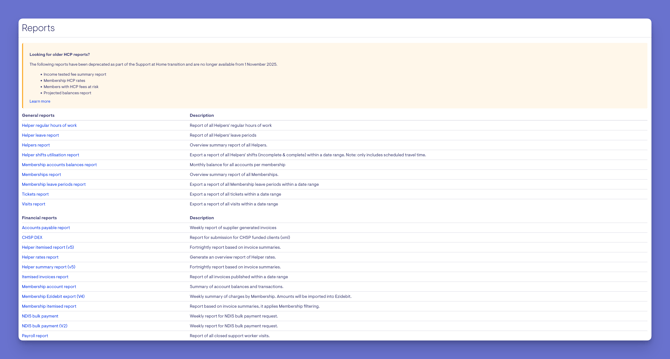
Please note: Some reports may be marked as deprecated (for example, certain ones under HCP). This list changes over time as Lookout adds new report templates or retires ones that are no longer relevant, so be sure to check the highlighted section on this screen.
Running a report
- From the main navigation menu, click All reports under the Reports section. If all sections are expanded, you may need to scroll to find it.
- Choose the report you need from the general or financial reports list. click it's name to begin.
- Apply a date range or time period for the report.
- When ready, click the Generate button in the top-right corner to run the report and pull the information.
- A green banner will appear confirming your actions, and the report will be sent to your email address.
Troubleshooting
I can't see the Reports menu at all
Your access may be restricted by community permissions. Ask an administrator to review your access.
I can see general reports but not the financial ones
Financial reports require the Finance Admin permission. Ask an administrator to review your access.
A report I used before is no longer there
Reports can be deprecated and retired over time as Lookout updates its templates. If a report has been removed, the Data exporter may let you build an equivalent custom export - see our data exporter article.
The report doesn't have the columns or filters I need
All Reports uses fixed templates. For custom columns and filters, use the Data exporter instead. To learn more about data export, please read its dedicated article.
Still Need Help?
If you're still experiencing issues, please contact our Support Team and include:
- Screenshots (if possible)
- The user's name/email
- The type of notification affected
- The channel you expected it on (in-app, email, or push)
- The exact steps taken