
This guide explains what agreement templates are, why they matter, and how to set them up in Lookout. It covers the three types of agreement templates - membership, service, and Helper - and how to create, edit, publish, make current, and delete them.
What is an agreement template?
An agreement template is a reusable starting point that defines the wording and structure of an agreement in Lookout. Rather than writing an agreement from scratch each time, you set up a template once, and Lookout uses it to generate the actual agreement - automatically filling in the relevant details (such as a Member's funder or a Helper's name).
There are three types of agreement template, all managed in the same place:
- Membership agreement templates: The service agreement (also known as the Terms and Conditions) between your organisation and a Member.
- Service agreement templates: The agreement used for the services a Helper provides, which underpins their contracts.
- Helper agreement templates: The agreement between your organisation and a Helper.
Well-maintained agreement templates keep your agreements consistent and accurate:
- Save time - set the wording once and reuse it for every new agreement.
- Stay consistent - everyone works from the same approved wording.
- Fill in automatically - templates pull in the relevant details (like the funder or Helper name), so each agreement is personalised without manual editing.
- Keep control of versions - you choose which version is current, and publishing preserves a clear, locked record.
Before you start
Before reviewing this article, please ensure you meet these prerequisites:
- You are logged into Lookout as a staff member.
- You have permission to manage agreement templates. If you can't see Agreement templates in Settings, your access role may not include it. Ask an administrator within your organisation to review your permissions.
Creating an agreement template
Step 1: Open Agreement templates
- From your home dashboard, navigate to the overflow menu by clicking the ellipsis (...) next to your name in the bottom left-hand corner.
- The overflow menu will open - click Settings.
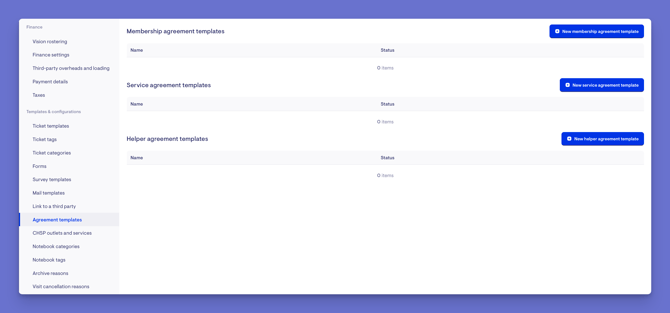
- In the main settings, navigate to the Templates & configurations section, then click Agreement templates.
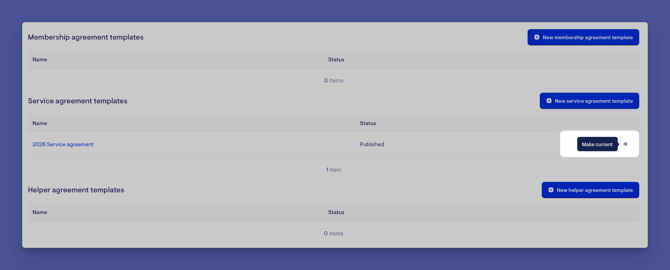
- Here you'll see the three sections - Membership agreement templates, Service agreement templates, and Helper agreement templates.
- If there are already tem[plates created, they will be listed under the applicable section with a name and status. Otherwise, the page will show no results.
Step 2: Create a new template
- In the relevant section, click the + New [type] agreement template button (for example, + New membership agreement template).
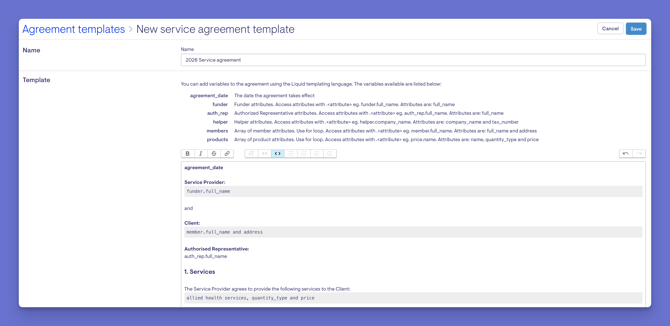
- Give your new template a Name.
- Enter the template body - the wording of the agreement. You can use the formatting tools and include placeholders that Lookout fills in automatically (for example, a placeholder for the funder's name will be replaced with the actual funder when an agreement is created).
- When you are ready, click Save.
- A green confirmation banner will appear, letting you know the new template has been created. New templates start as a draft.
Step 3: Edit the template (if needed)
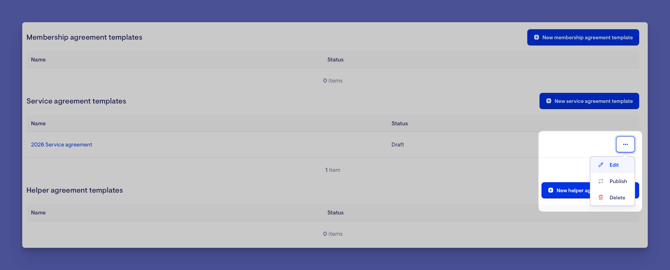
- Find the template and click its ellipsis (...) button to open its actions menu.
- Click Edit.
- Update the name or wording, then, when ready, click Save.
Step 4: Publish the template
Publishing locks in the wording and prepares the template for use.
-
Find the template and click its ellipsis (...) button to open its actions menu.
-
Click Publish.
-
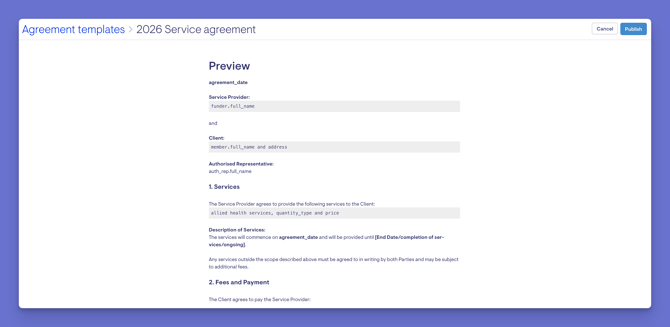
You'll see a preview of the agreement with the placeholders shown, so you can check it reads correctly.
-
Click Publish to confirm.
Step 5: Make it the current template
Making a template current tells Lookout to use it for new agreements of that type.
- Instead of the ellipsis (...) icon button, you'll see an asterisk (*) button. Hovering over this will show it's to Mark as current.
- Click the asterisk (*) button.
- Confirm your action.
A confirmation message will show that this template is now the current agreement. Only one template per type can be current at a time - making a new one current replaces the previous one for future agreements.
Top tip: Click a template's name at any time to preview how it will look.
Deleting a template
- You can only delete a template while it's still a draft (unpublished). Click it's ellipsis (...) button to open its actions menu and click Delete.
- Published templates can't be deleted - this preserves a record of agreements that have been used. If a published template is no longer needed, create and make current a new one instead.
What happens next?
Once a template is published and made current:
- Lookout uses it to generate new agreements of that type.
- For membership agreement templates, it becomes the template used when creating a Member's service agreement. For more information on service agreements, please view the dedicated article.
- Existing agreements already created from a previous template are unaffected.
Troubleshooting
I can't see Agreement templates in Settings
This requires permission to manage agreement templates. Ask an administrator within your organisation to review your access role.
I can't delete a template
Only draft (unpublished) templates can be deleted. Published templates can't be removed, as they preserve a record of agreements that may have been used. Create a new template and make it current instead.
My template isn't being used for new agreements
Check the template has been both published and made current. Only the current template of each type is used for new agreements.
The placeholders aren't filling in
Placeholders are replaced with real details when an agreement is created for a specific Member or Helper. In the template itself, you'll see the placeholder; in the generated agreement, you'll see the actual value.
There's no "current" membership agreement, so I can't create a service agreement
A membership agreement template must be published and made current before service agreements can be created. Set one as current, then try again.
Still need help?
If you're still experiencing issues, please contact our Support Team and include:
-
Screenshots (if possible)
-
The exact steps taken
-
Any error messages received